Create a key
A key is a password for your programs. Each key has its own set of scopes and an expiry; it’s shown only once.
Create
- In the API section, on the Keys tab, click New key.
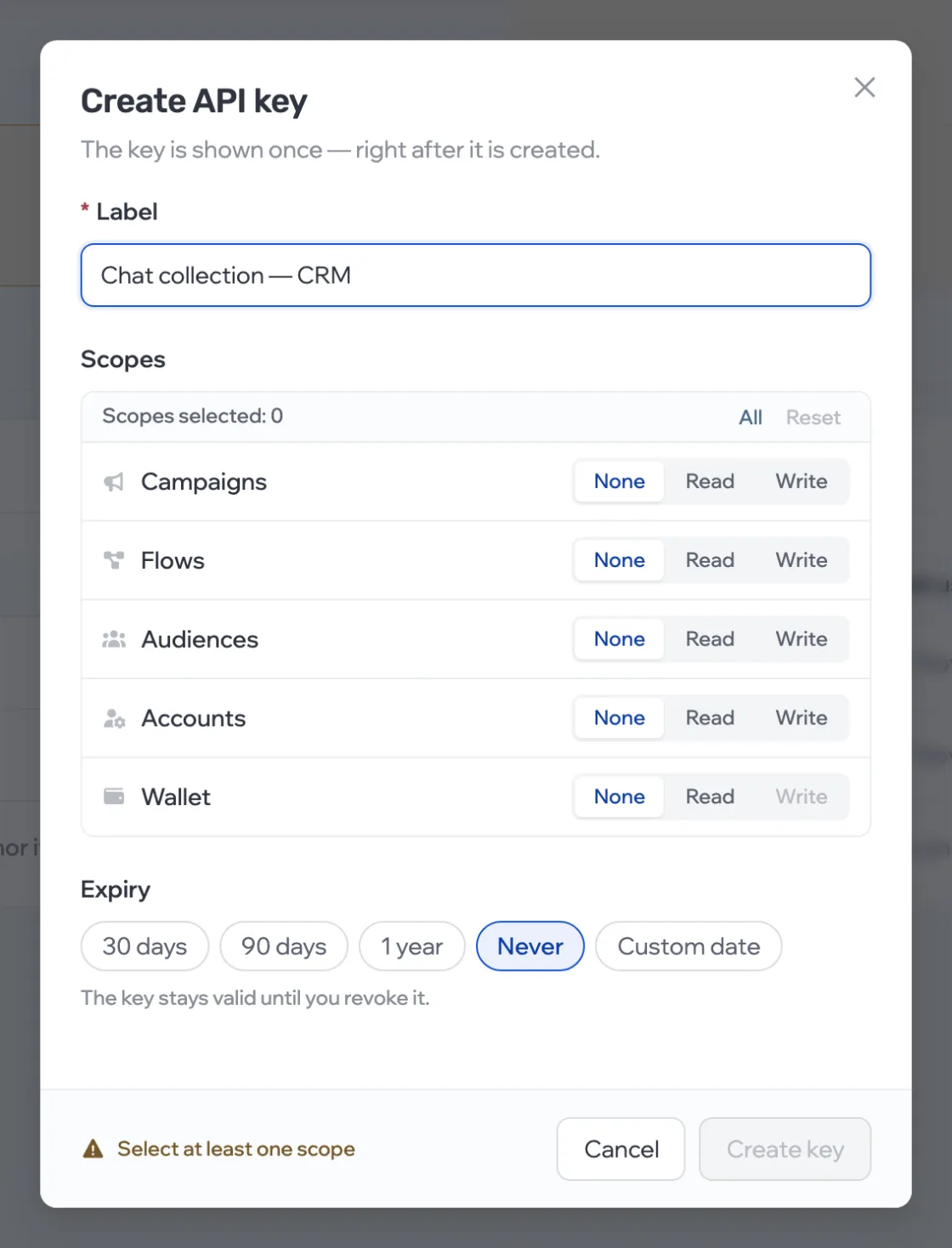
- Set a label — so you can later tell where the key is used — the scopes by section and the expiry. Click Create key.
- Copy the key and store it safely. It won’t be shown again.
Scopes
For each section — campaigns, flows, audiences, accounts, wallet — choose None, Read or Write. To call methods on behalf of accounts you need write access in the Accounts section — the “Accounts: actions” scope. Writing to the wallet through the API isn’t available.
Expiry
30 days, 90 days, 1 year, a custom date or never. After the expiry the key stops working — the list marks it as expired.
Keys in the list
The table shows the label, the start and end of the key, when it was created, when it was last used and when it expires. The full key is never shown again.
Revoke
Click Revoke next to a key and confirm — it stops working immediately and disappears from the list. This can’t be undone.
A key’s scopes and expiry can’t be changed after it’s created. Need a different set of scopes? Revoke the old key and create a new one.