Connect an assistant
All you need is the address from the dashboard: no keys or config files. You sign in with your account and approve access yourself.
Get the address
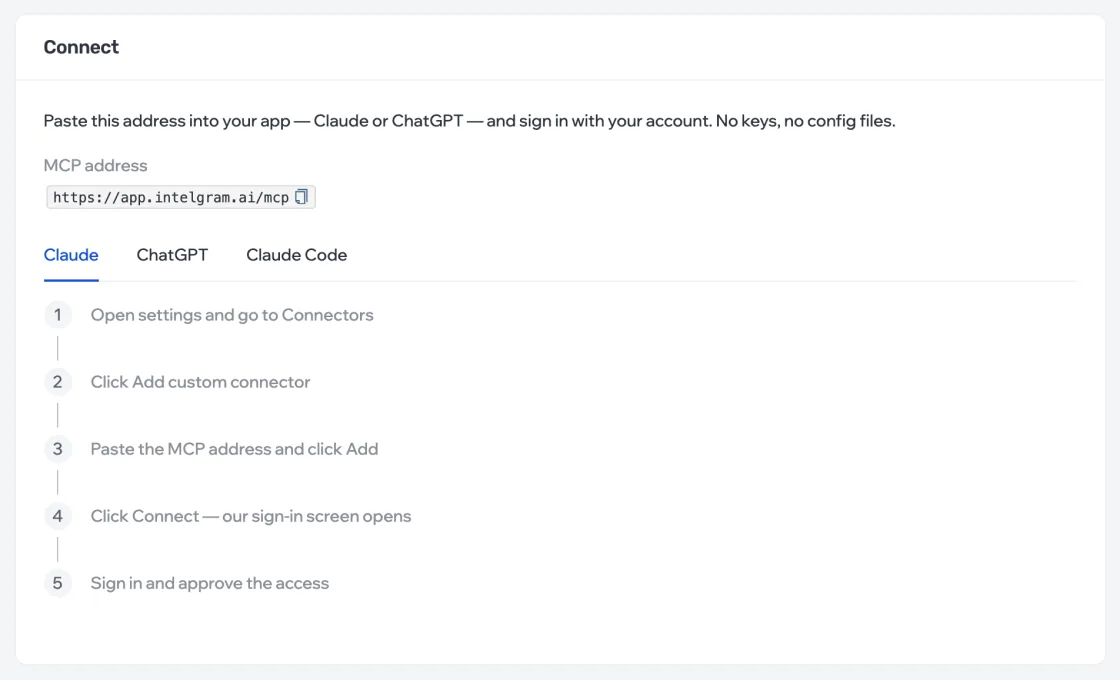
Open MCP from the profile menu in the top right. In the Connect block there’s the MCP address — copy it.
Claude
- In Claude, open settings and go to Connectors.
- Click Add custom connector, paste the MCP address and click Add.
- Click Connect — the dashboard sign-in opens. Sign in and approve access.
ChatGPT
- In ChatGPT, open settings and go to Connectors. Turn on developer mode if it’s off.
- Create your own connector, paste the MCP address and choose OAuth sign-in.
- Sign in to the dashboard and approve access.
Claude Code
Copy the command from the Claude Code tab and run it in your terminal. Sign-in opens in the browser.
claude mcp add --transport http intelgram <MCP address>
Approve access
After you sign in, the dashboard shows which app is asking for access and what it will be able to do. Click Approve — you’re taken back to the app and the assistant starts working. Cancel gives the app nothing.
If the dashboard says “This request does not fit”, the link has expired or came from a different app. Start connecting again in the app itself.