Set up notifications
Notifications come to the dashboard bell and, if you want, to email and Telegram. For each type you can choose where it goes.
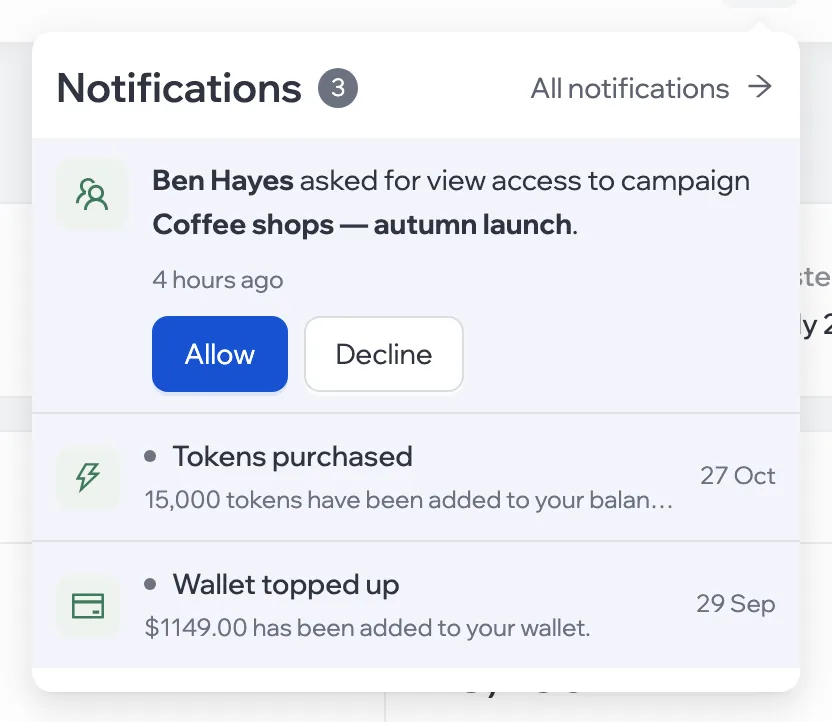
The bell
The bell in the dashboard header shows the latest notifications grouped by day. Unread ones are marked; Mark all read clears the marks. Settings is there too.
Choose where they go
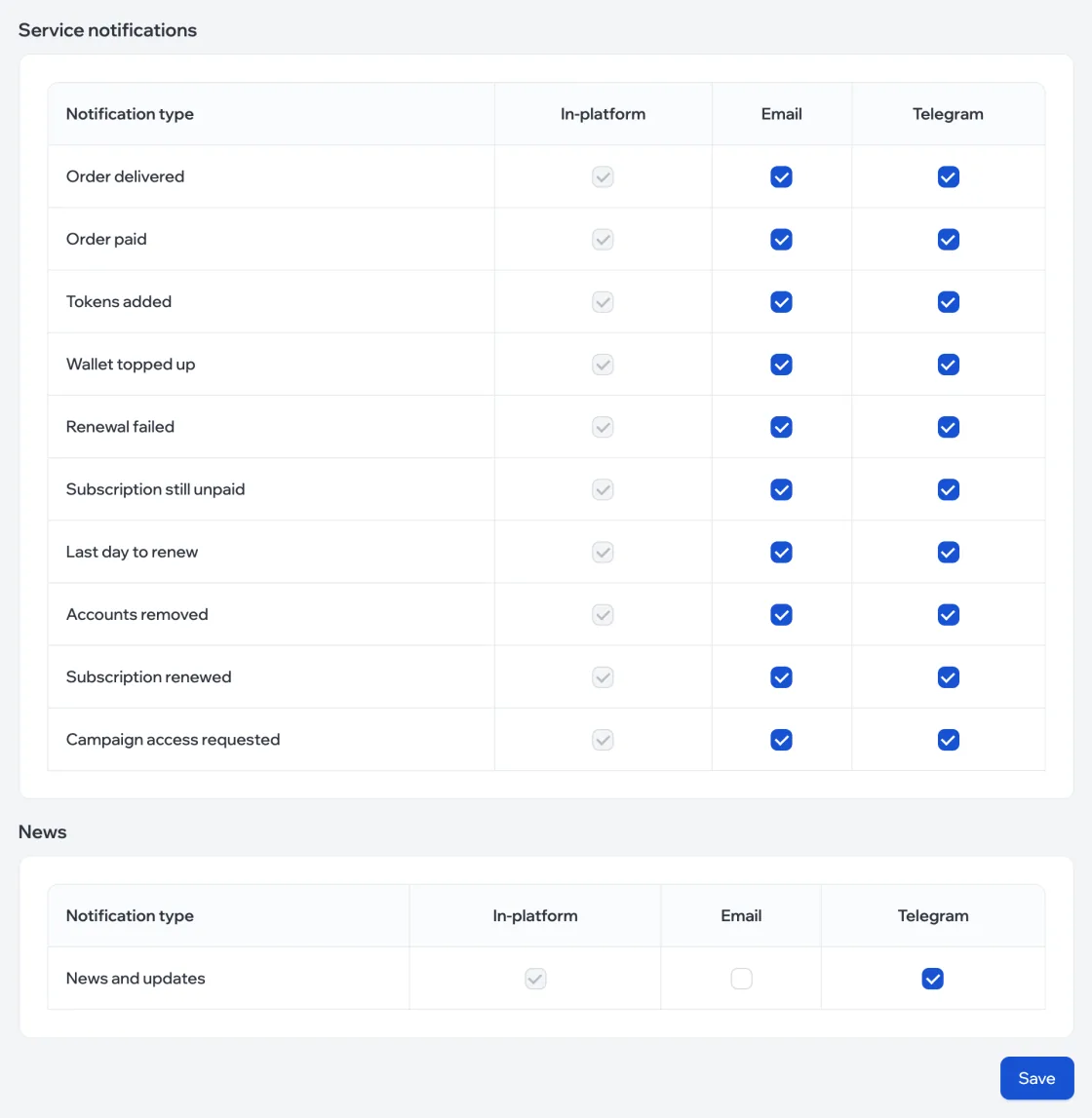
- In the bell, click Settings.
- In the table, tick where else each notification type should go: Email and Telegram. Notifications always come to the dashboard bell — In-platform. Click Save.
Types
| Notification | When it arrives |
|---|---|
| Service | |
| Order paid / Order delivered | Payment for accounts went through / the accounts were delivered |
| Wallet topped up / Tokens added | After a successful payment |
| Subscription renewed | The package was renewed |
| Renewal failed | The package went into its grace period |
| Subscription still unpaid / Last day to renew | Reminders during the grace period |
| Accounts removed | The grace period ended |
| Campaign access requested | A colleague requested access through an invite |
| News | |
| News and updates | What’s new on the platform |
Notifications about campaign events — for example, hot leads from a script — are turned on in the campaign’s own settings: Notifications.