Set up profiles
Profile setup (“Decoration” in the dashboard) means the account’s name, bio, username and avatars. It comes from a template: one template can set up any number of accounts, and each gets its own variant.
Make a template
- Above the accounts table, click Templates, then Create template.
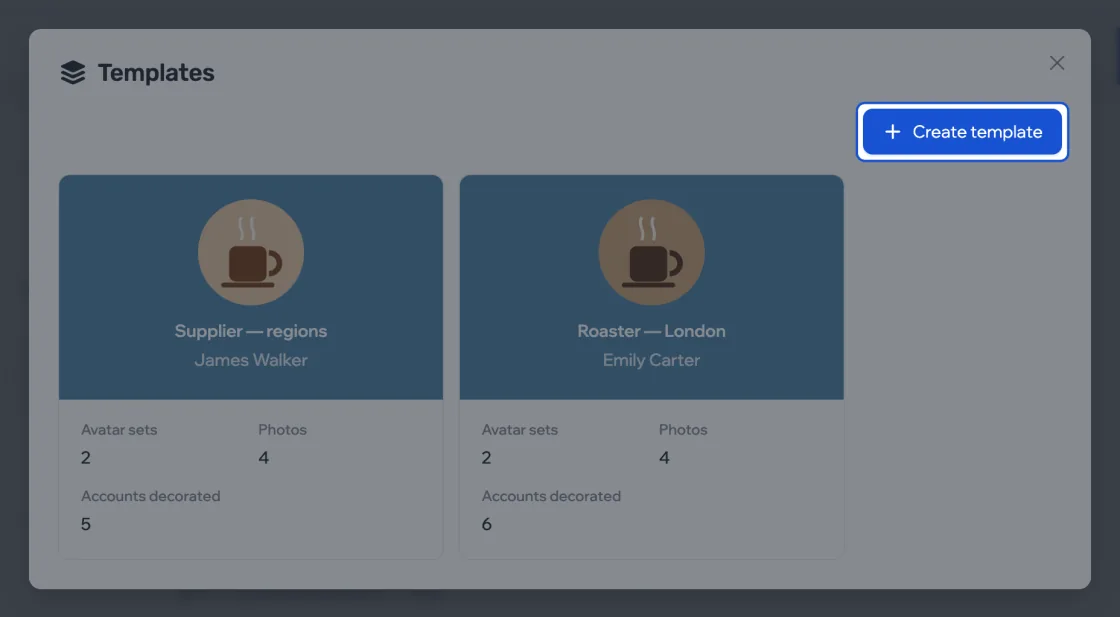
- Fill in the identity: first name, last name and bio. Only you see the template name.
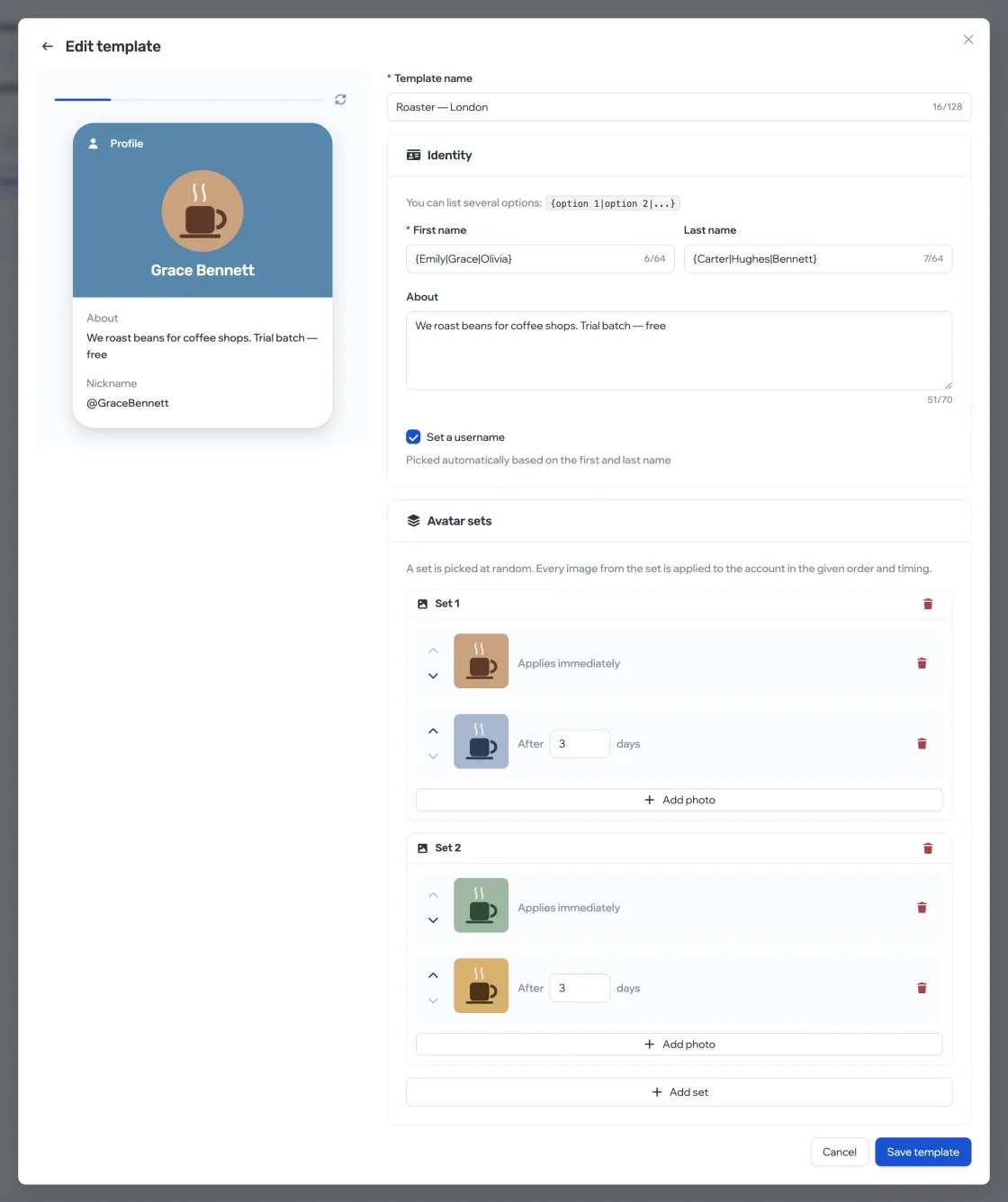
- Add at least one avatar set and save the template.
Variants instead of identical profiles
In the first name, last name and bio, write variants in curly braces: {Emily|Grace|Olivia}. Each account gets its own variant — Telegram quickly notices fifty identical profiles. The preview cycles through the variants every 10 seconds, showing the profile the way the other person will see it.
- First name
- Required. Up to 64 characters per variant.
- Last name
- Up to 64 characters.
- About
- Up to 70 characters — that’s Telegram’s limit.
- Set a username
- A username is picked automatically from the first and last name, with a random tail: Telegram usernames are unique.
Avatar sets
A set is the photos of one “person”. An account gets the whole set: the first photo goes up right away, the rest after a pause you set in days. That makes the profile look alive.
- Click Add photo and pick a JPEG, PNG or WebP image up to 25 MB.
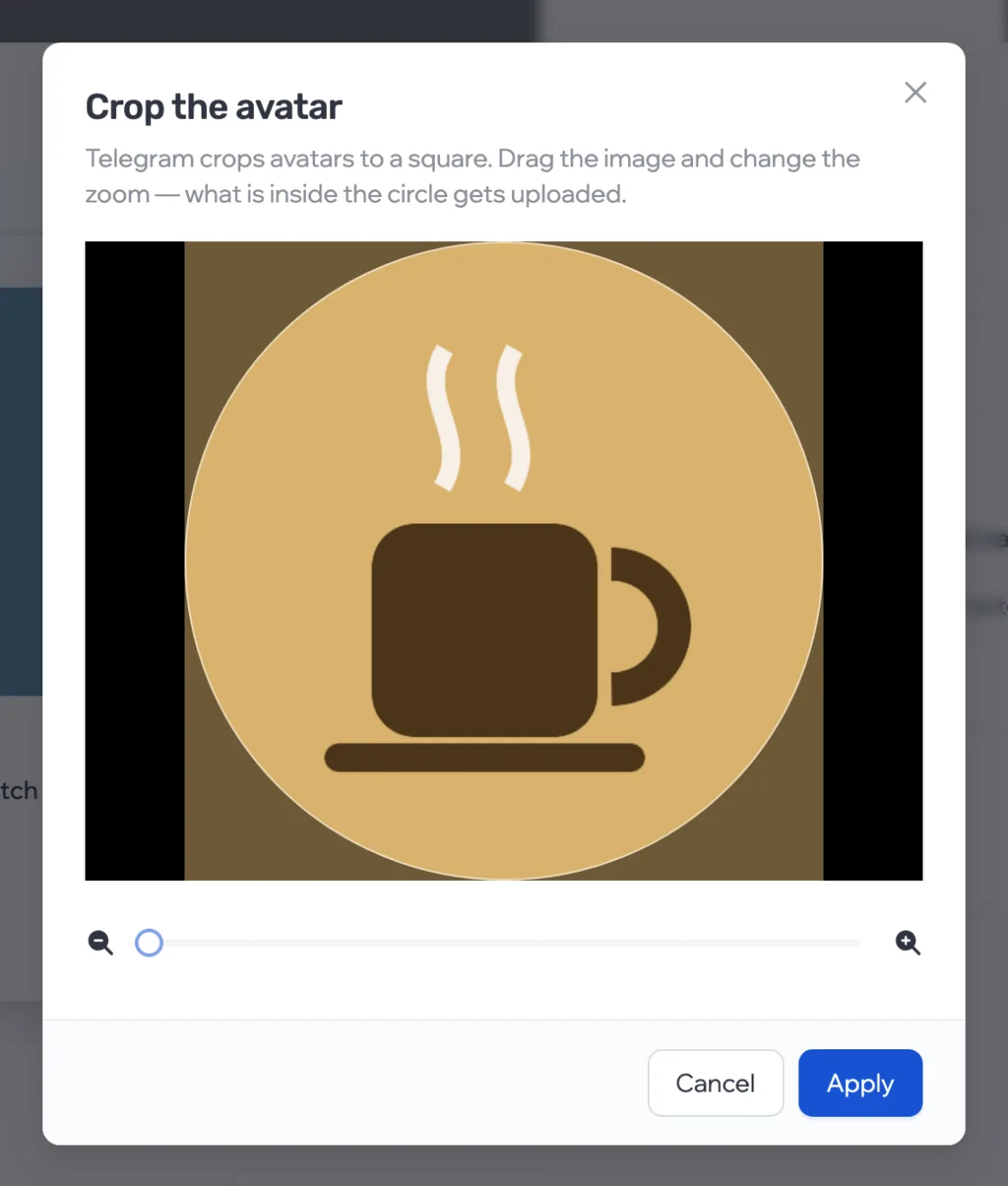
- Telegram shows the avatar as a square inside a circle: move the image and adjust the zoom, then click Apply.
- For the second and later photos, set after how many days to put them up. A set holds up to 5 photos.
You can have several sets: when a template is applied, they’re handed out to accounts in turn.
Apply to accounts
- Tick the accounts and click Change template.
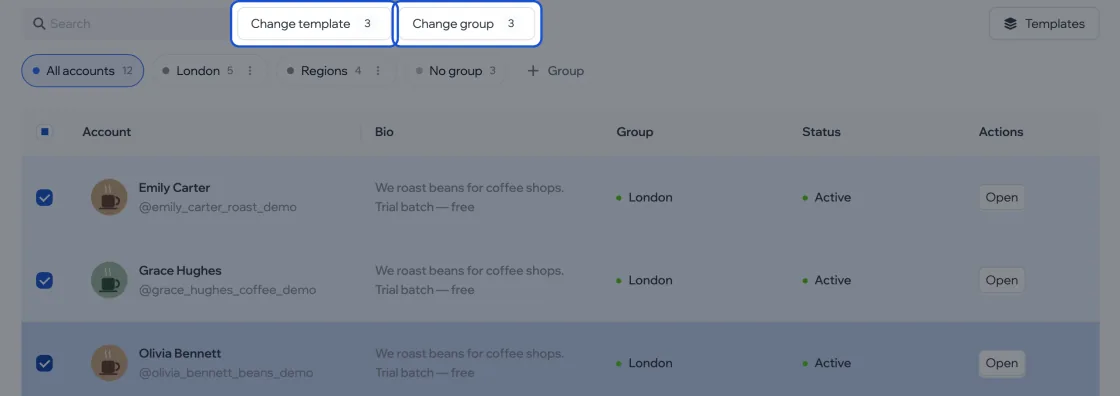
- Choose a template and click Apply to N.
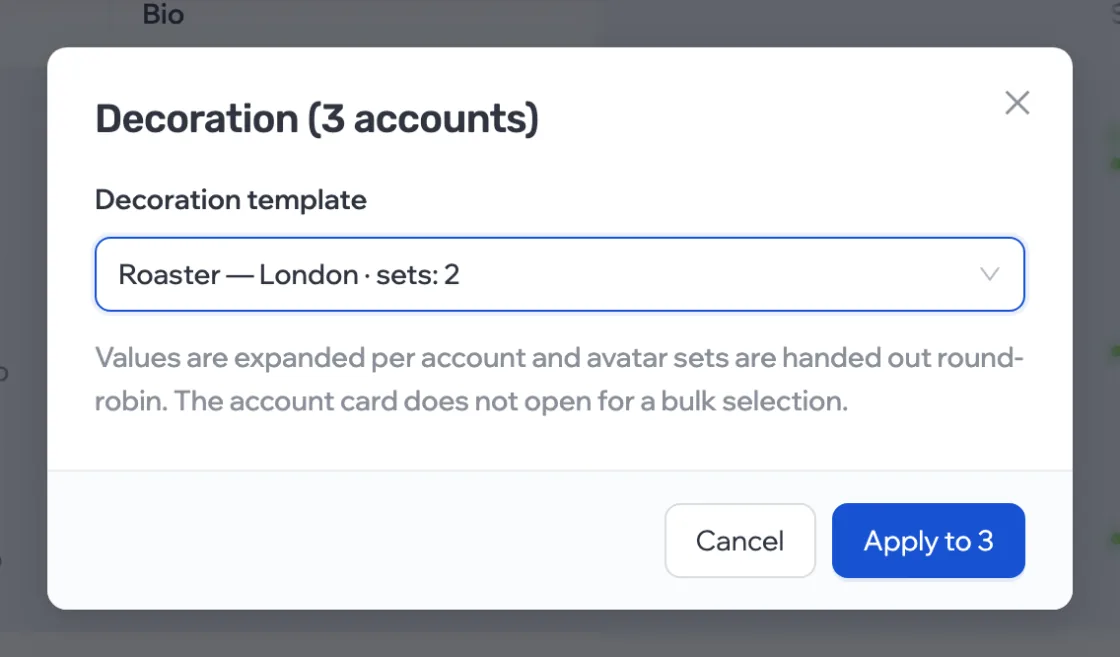
For a single account, change the template in its card: Decoration › Change. There’s also New template there if none fits.
Track the progress
The profile doesn’t change instantly but step by step, with pauses: changing the name, username and avatar all at once is a reason for a ban. While the required steps are running, the account’s status is Preparing.
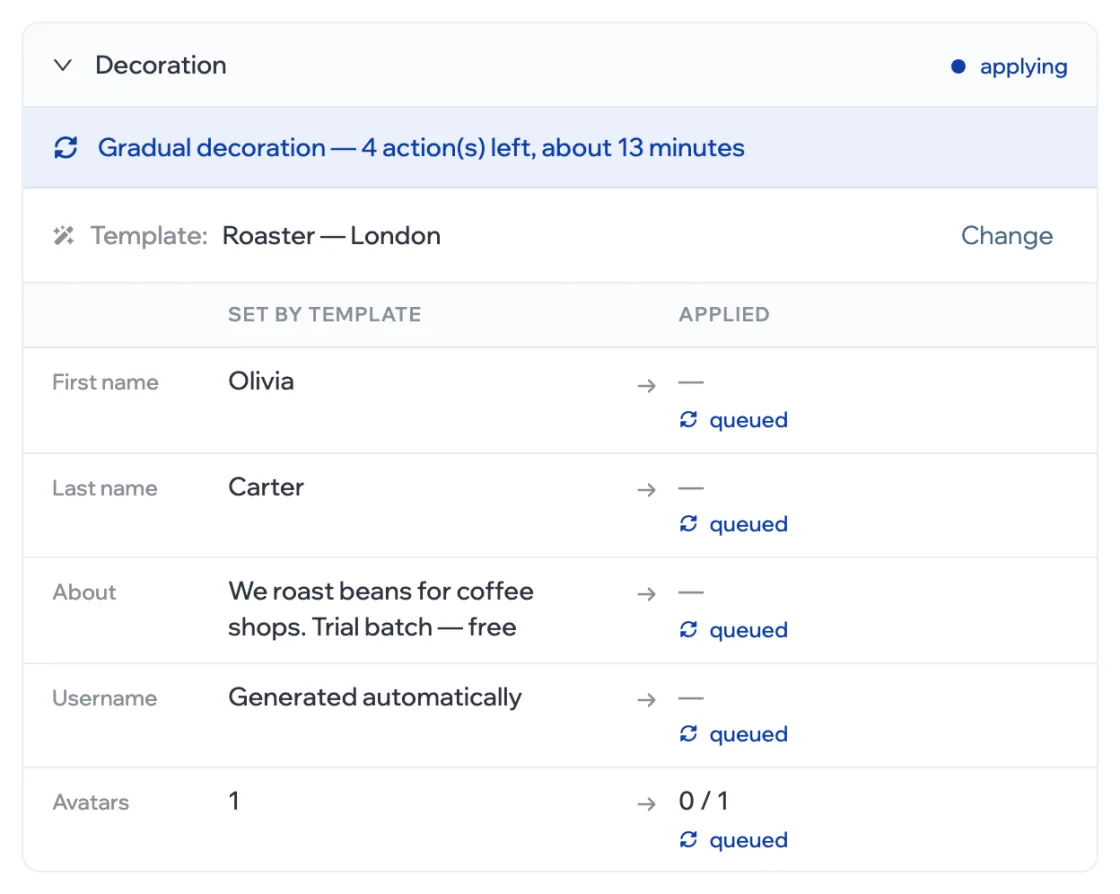
- applied
- Already in the profile.
- queued
- Waiting for its step.
- error
- The step didn’t go through — the reason is next to it.
- not set
- The template has no value for this field.
The account is ready to work when its profile has the name, bio, username and first avatar. The other avatars from the set arrive later and don’t hold up readiness.
If the setup failed
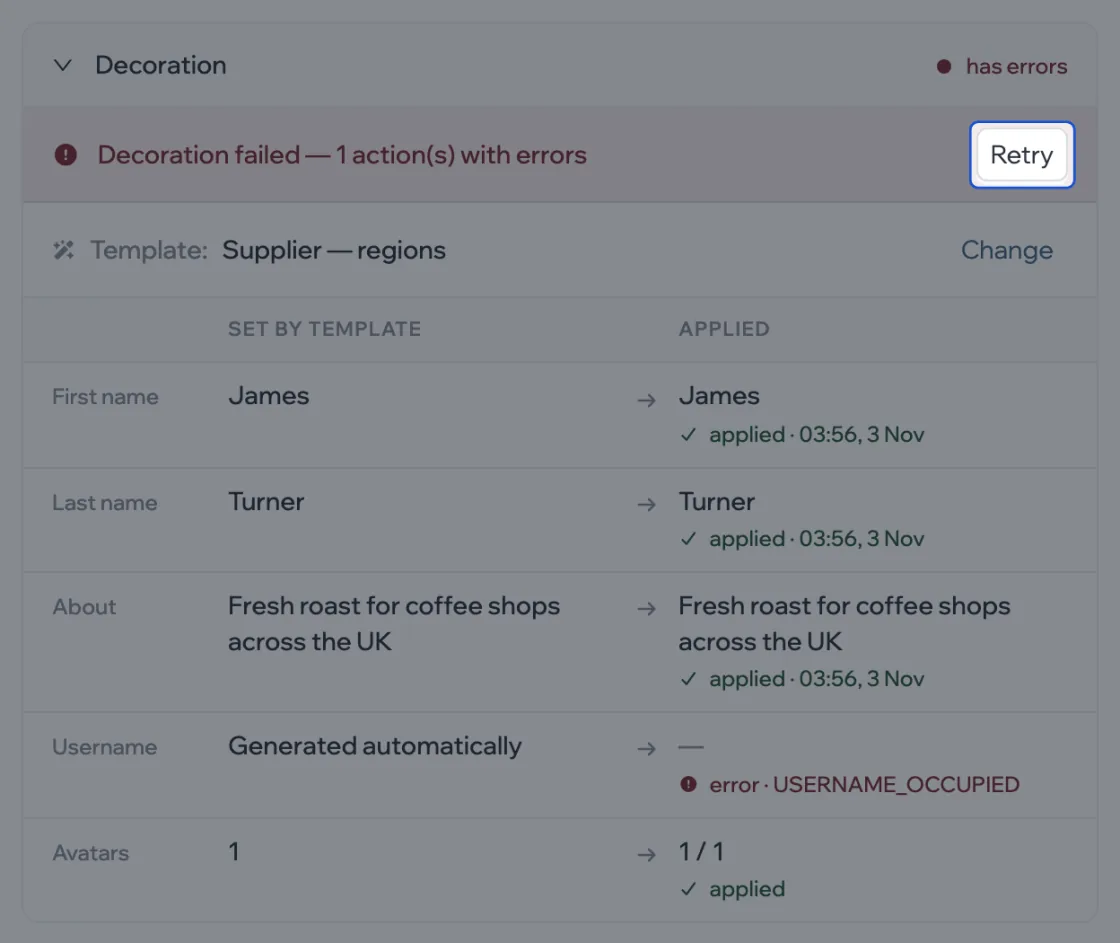
The account’s status is Preparation failed, and the card shows the failed step and its reason. Click Retry in the red banner of the card or in the table row.
You can delete a template at any time — accounts set up with it stay as they are.