Buy more and renew
Accounts are rented as a package for 30 days. You can grow the package at any time, renew it by hand or automatically, and exclude accounts you don’t need in advance.
Buy more accounts
- In Accounts, click Purchase accounts.
- Use the slider to choose how many accounts the package will have. On the right is the order: how many you’re adding, the price per account and the total.
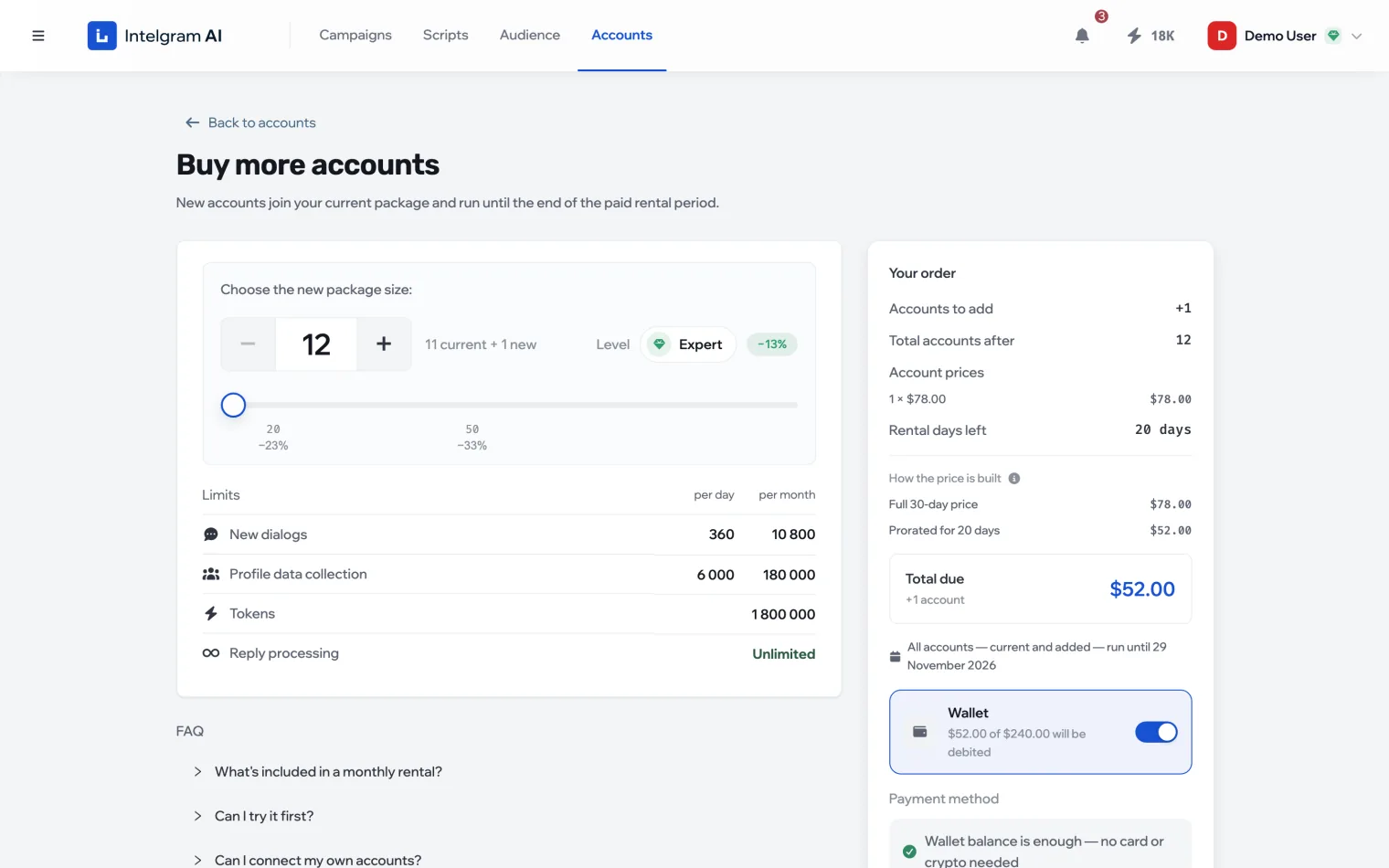
- Click Pay. The wallet is charged first; you can pay the rest by card or crypto.
Added accounts work until the end of the current period, together with the existing ones. So you only pay for the days that are left: the 30-day price is prorated, and if the amount comes out very small, a minimum charge applies. The price per account depends on how many accounts the package will have after the purchase.
After payment, the accounts are prepared and appear in the list automatically.
From a trial to a month
During a trial, the buy button is replaced by Switch to a month. Choose how many accounts to take for 30 days: the account you tried stays with you and counts toward that number. The month starts on the day of payment; the remaining trial days don’t carry over.
Renew the package
The package’s term and contents are in Profile, in the Current package block: when it’s active until, how many accounts it has, and which of them are included in the next period.

- Automatically
- Turn on Auto-renew — on the day the period ends, the amount is charged to your wallet and the package is extended by another month. The amount and date are in the tooltip next to the switch.
- By hand
- When the package has expired, a Renew button replaces the switch. On the renewal page, tick which accounts go into the new period, check the term and pay.
If you don’t renew in time
The package expires and a grace period begins. The accounts stay yours but don’t work: their status is Renewal required, campaigns are stopped and buying more isn’t available. A banner at the top of the dashboard shows the deadline and a Go to payment button.
Exclude an account
You don’t have to renew an account you don’t need. It keeps working until the end of the paid period and isn’t included in the next invoice.
- Open the account card and click Exclude in the Options section.
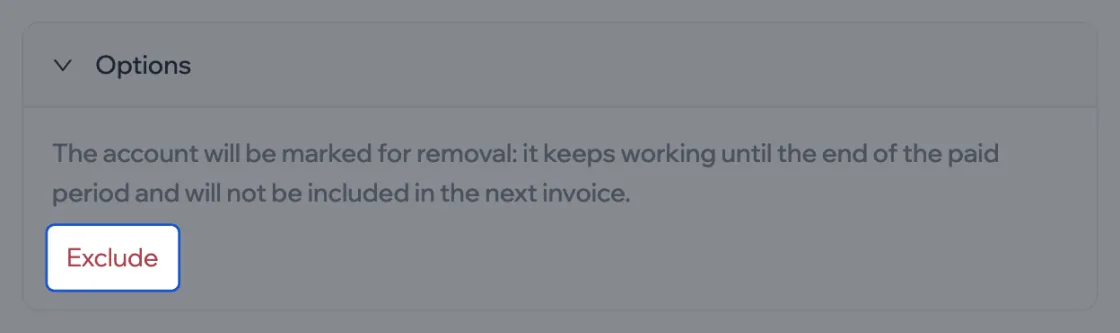
- Confirm. The account is marked “Removal scheduled”.
Changed your mind? Click Cancel removal in the same place. When renewing by hand, you can exclude and bring back accounts right on the renewal page.