Add contacts
Three ways to fill a list — pick yours.
Paste as textYou have usernames or phone numbers
Upload Excel or CSVYou have a table with columns
Find chats by keywordsNo base yet — find where to get one
Paste as text
- In the list, click Add and open the As a list tab.
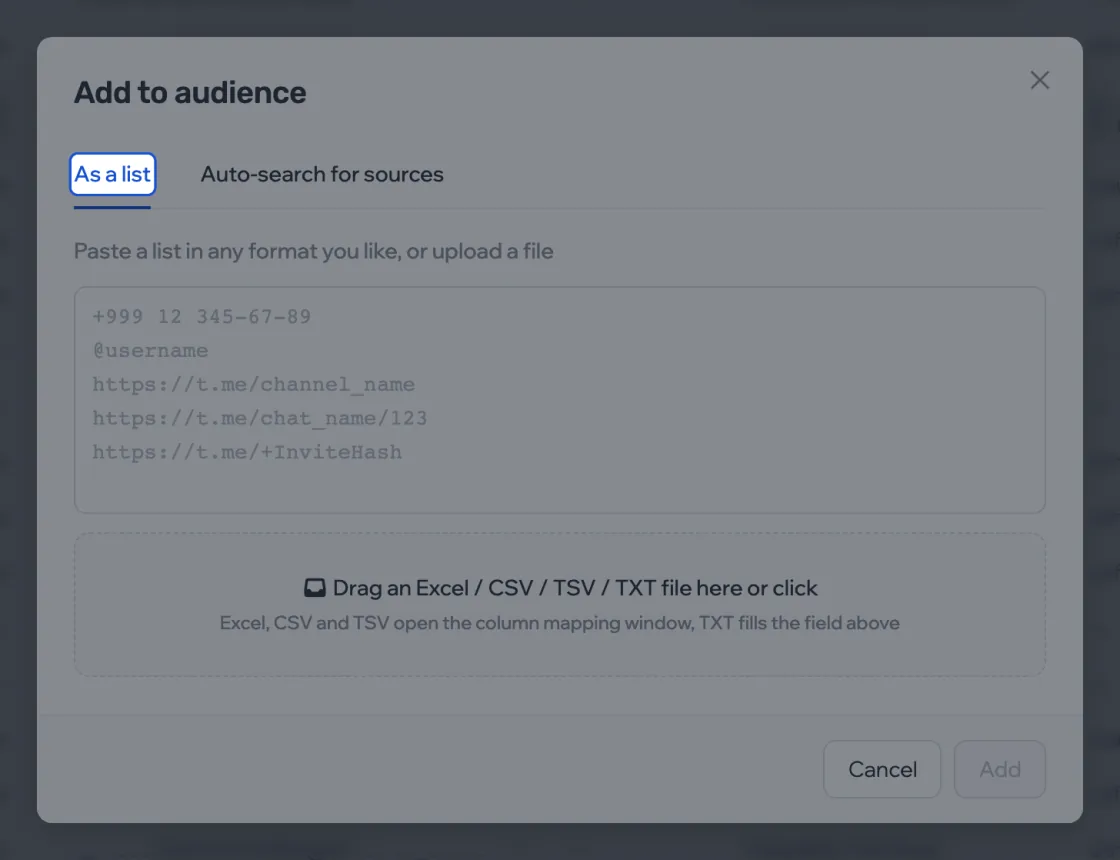
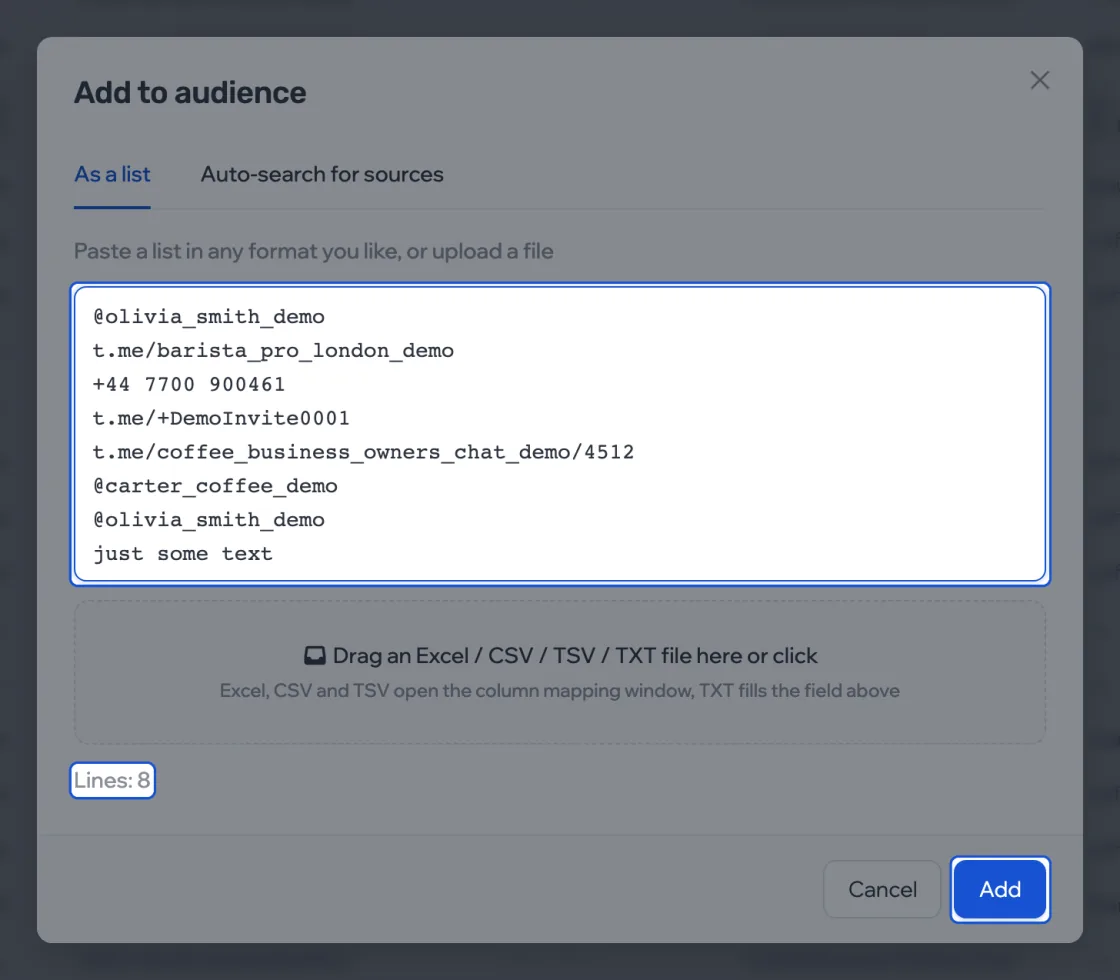
- Paste the rows, one per line. Any format works:
@usernamet.me/username+44 7XXX XXXXXXt.me/+InviteHasht.me/chat_name/123Post links aren’t accepted.
- Check the line counter under the field and click Add. Anything that wasn’t recognized shows up in the upload summary.
Upload Excel or CSV
- Drag the file into the Add window: .xlsx (first sheet), .csv or .tsv.
- Say what each column holds: a username, a phone number, a variable or “Ignore”.
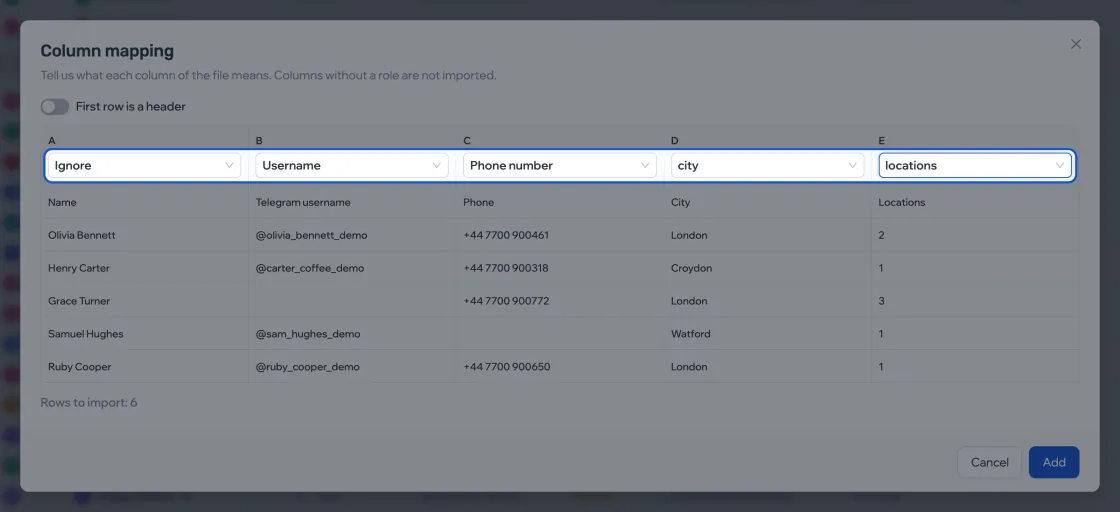
- Click Add.
You need at least one column with a username or a phone number. Save the rest as variables — they come in handy in messages.
Find chats by keywords Paid
- Add › Auto-search for sources tab. Enter phrases, one per line, up to 50.
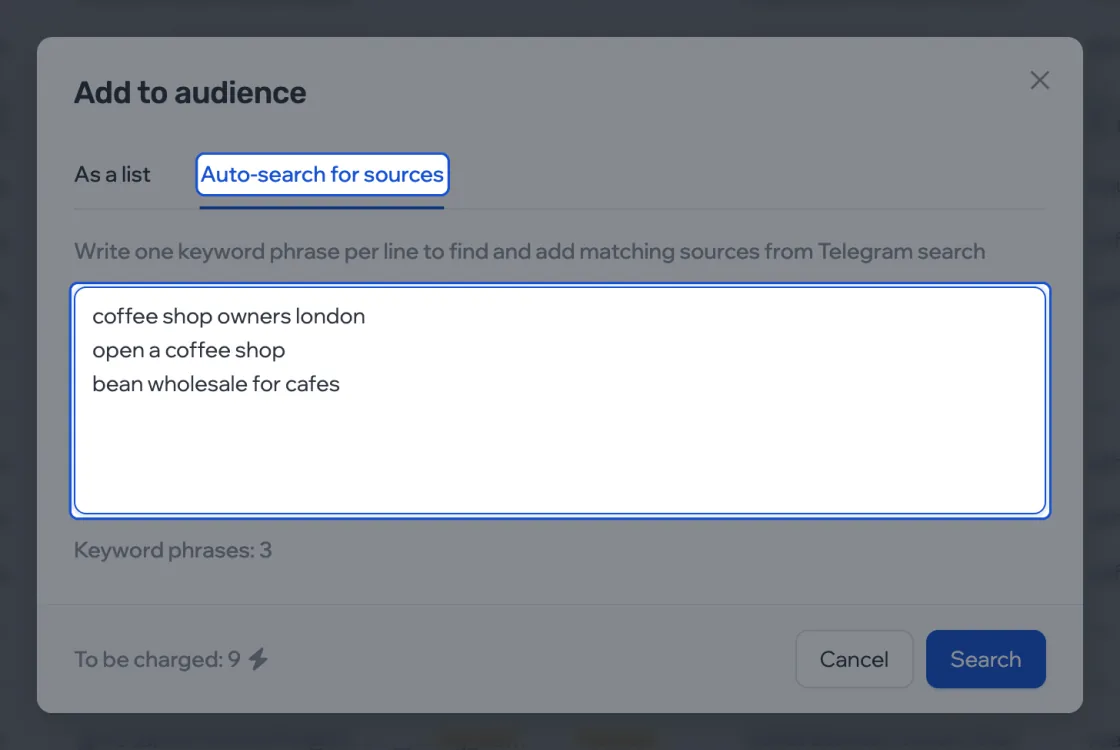
- Click Search. Found chats appear in the list marked “Found by search”.
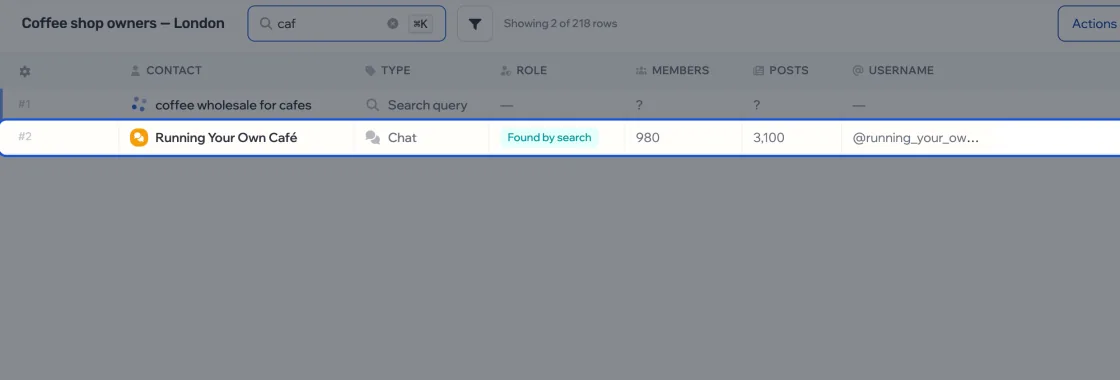
- The chats have no people yet — collect them.
If a row wasn’t added
| Reason in the summary | What to do |
|---|---|
| Duplicate | Nothing — the contact is already in the list |
| Post links are not supported | Use a link to the chat itself: t.me/chat_name |
| Not recognized | Check for typos |