Filter and export
Search and filters keep the rows you need in the table. Actions work on them: checks, tagging, export, deletion.
Find by name or username
The search field above the table looks through names, @usernames and phone numbers. Shortcut: ⌘K.
Filter
- Click the filter button next to search, then Add filter.
- Choose a field, a condition and a value. You can add several conditions — a row has to match all of them.
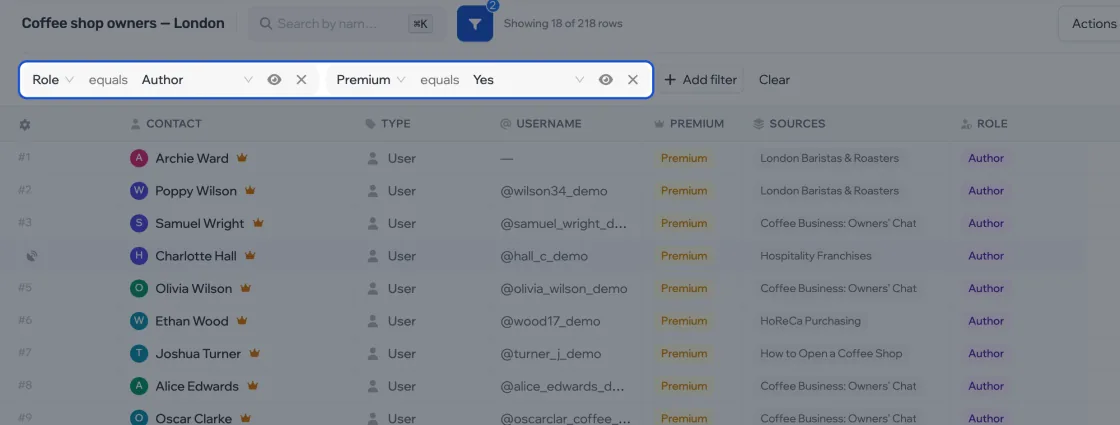
A filter can be switched off for a while without deleting it. All fields and conditions are in the reference.
Pick by chat and role
| You need | Filter |
|---|---|
| Only those who wrote in the chat | Role — equals — Author |
| No admins | Role — does not equal — Admin |
| People from one chat | Sources — contains — the chat’s name |
| Large chats | Members — greater than — 500 |
Set up columns
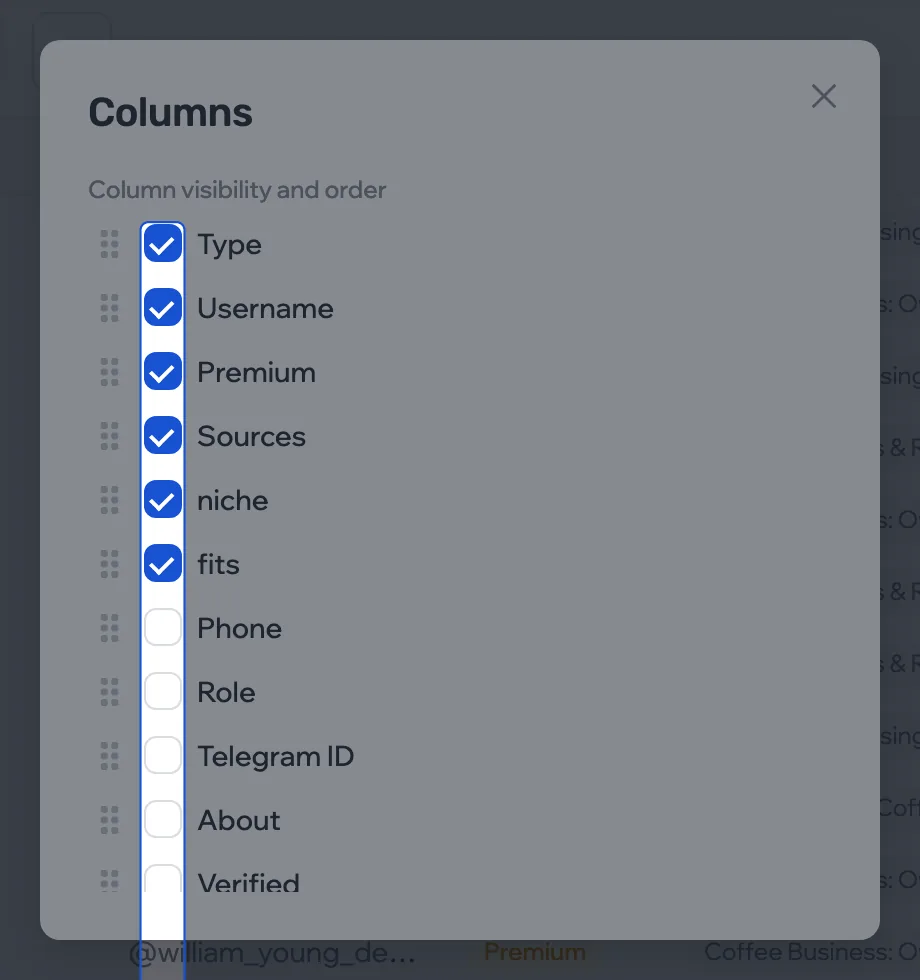
More › Columns: hide the ones you don’t need and drag the rest into order.
Which rows an action takes
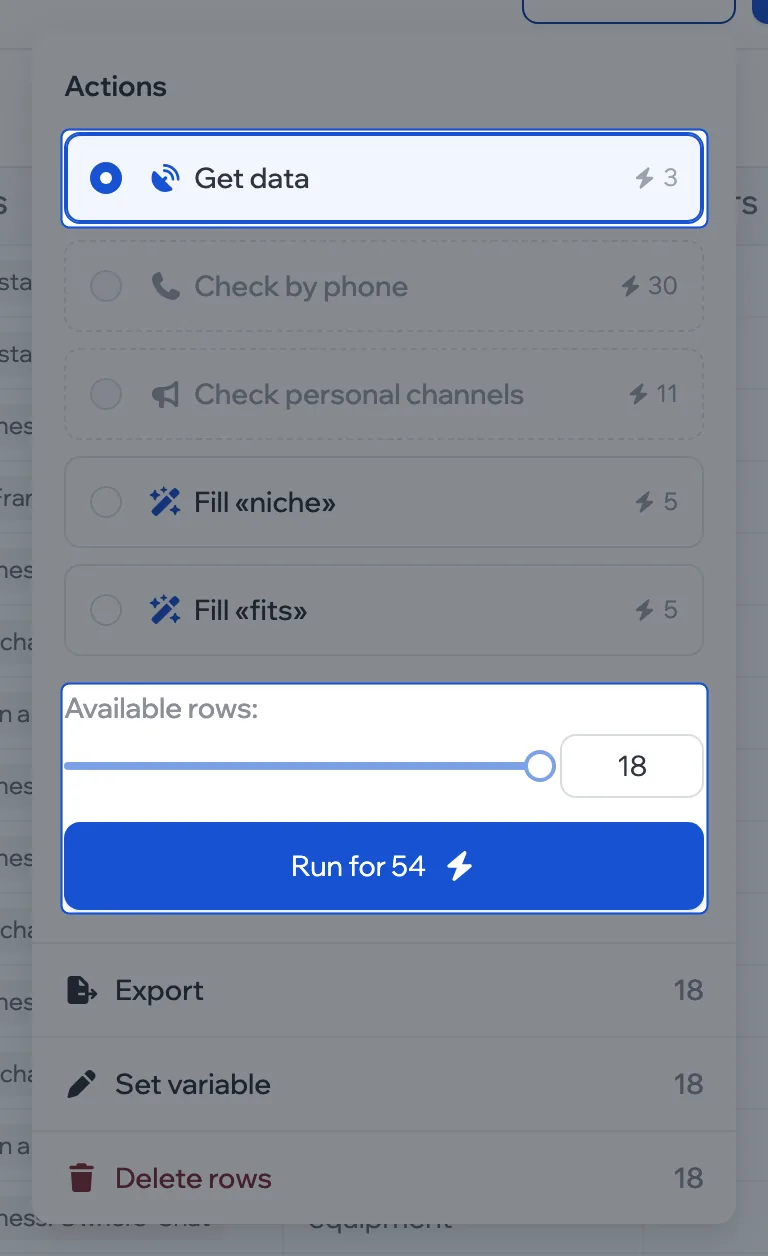
Any action takes the first N rows of the current view — after search, filters and sorting. N is set with the slider in the Actions panel.
Export to CSV
Actions › Export. The file gets the visible columns in their order.
Delete rows
Actions › Delete rows. For a single row, use the trash button that appears when you hover over it.
This can’t be undone. Rows are deleted together with their variable values. Not sure? Export first.