Tag with variables
Variables are your own columns in a list: city, niche, “fits / doesn’t fit”. Their values are inserted into script messages.
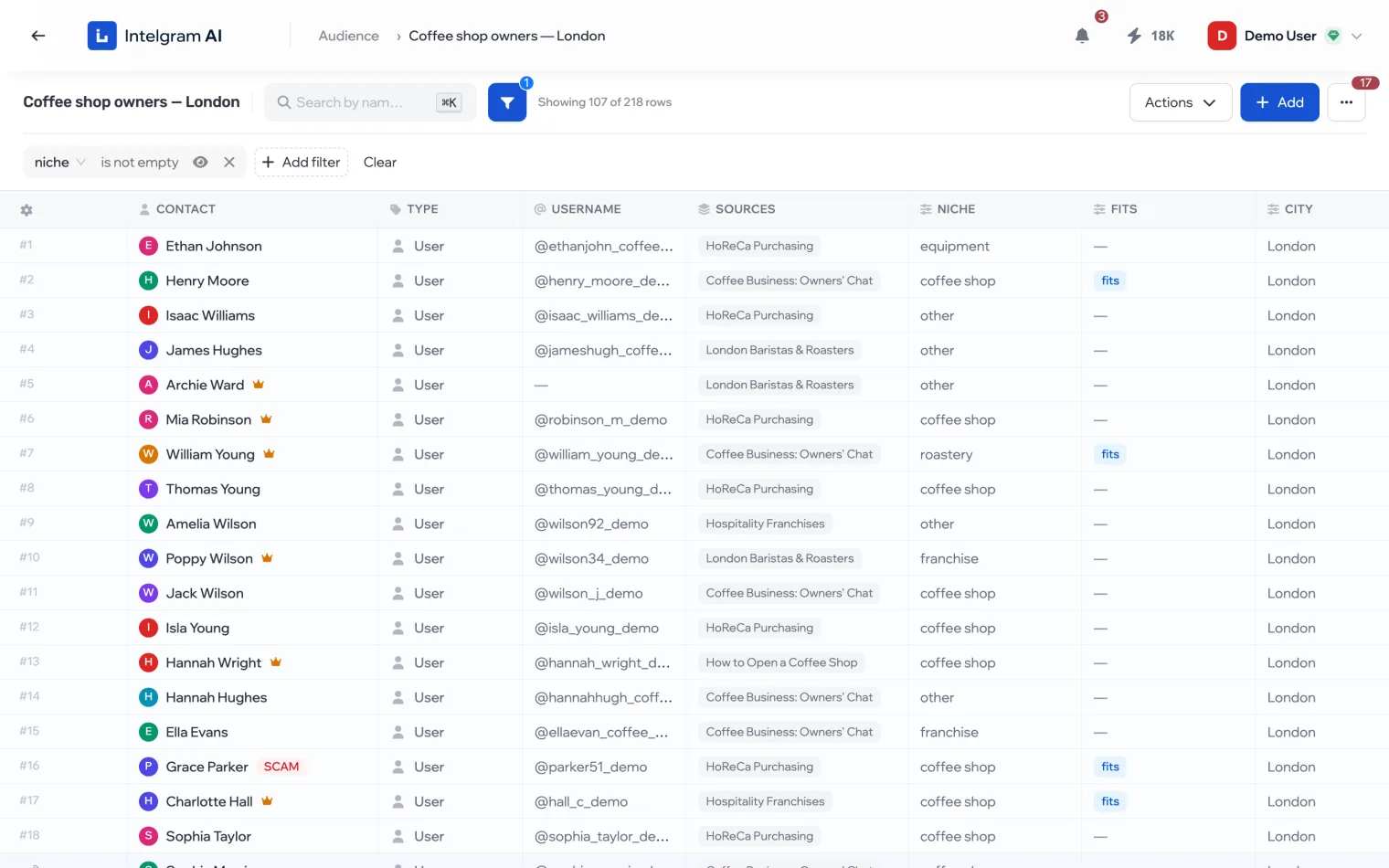
Create a variable
- More › Variables › Create.
- Set the name, the type and, if needed, a default value. Save.
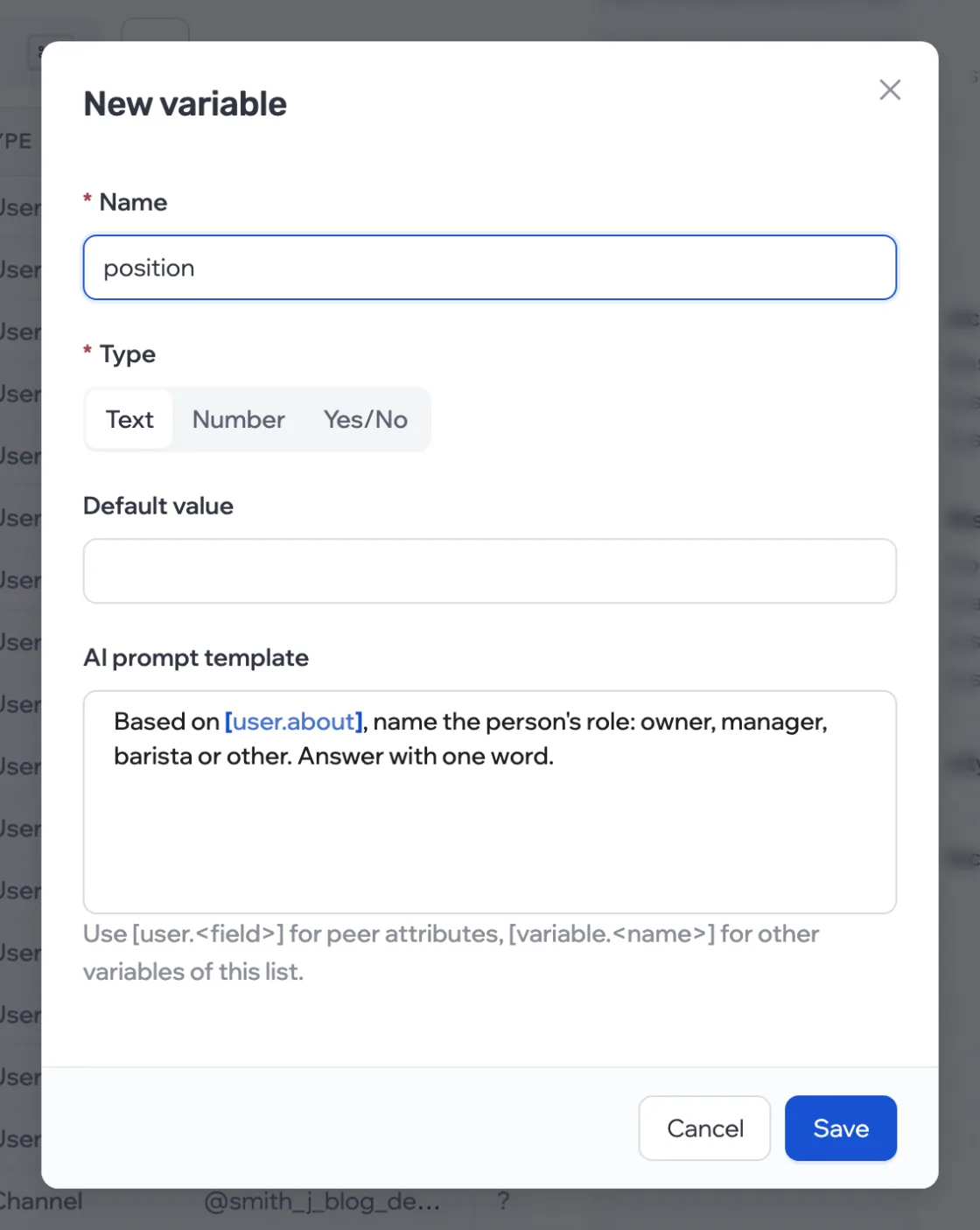
- Name
- Starts with a letter, then letters, digits and
_. - Type
- Text, Number or Yes/No.
- Default value
- Used when a person has no value.
Fill in by hand
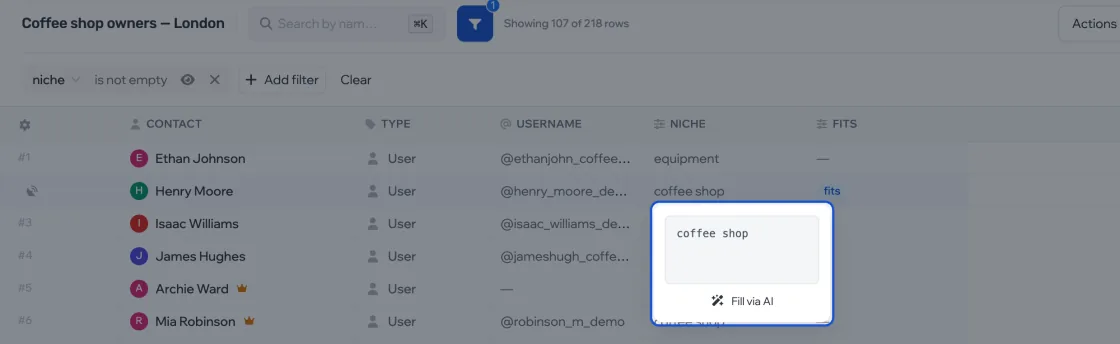
For one row, click the variable’s cell: a value field opens.
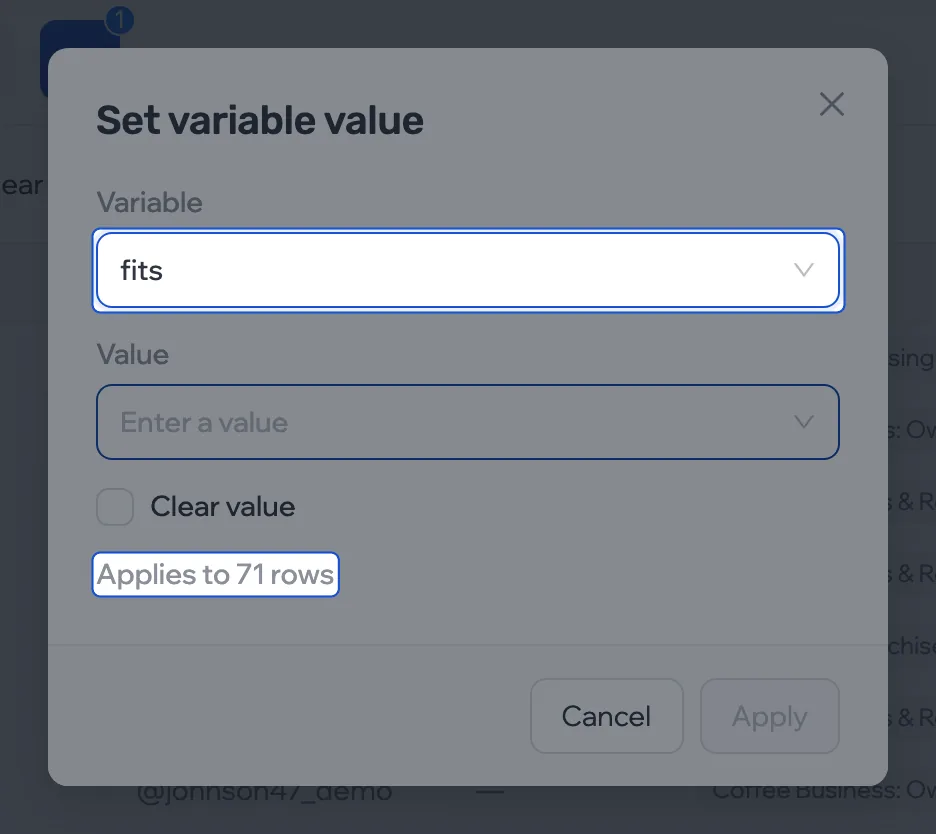
For many rows, narrow them down with a filter, then Actions › Set variable.
Fill with AI Paid
- In the variable, fill in the AI prompt template. The person’s data is inserted with slugs in square brackets.
“Based on [user.about], decide whether the person owns a business. Answer yes or no.”
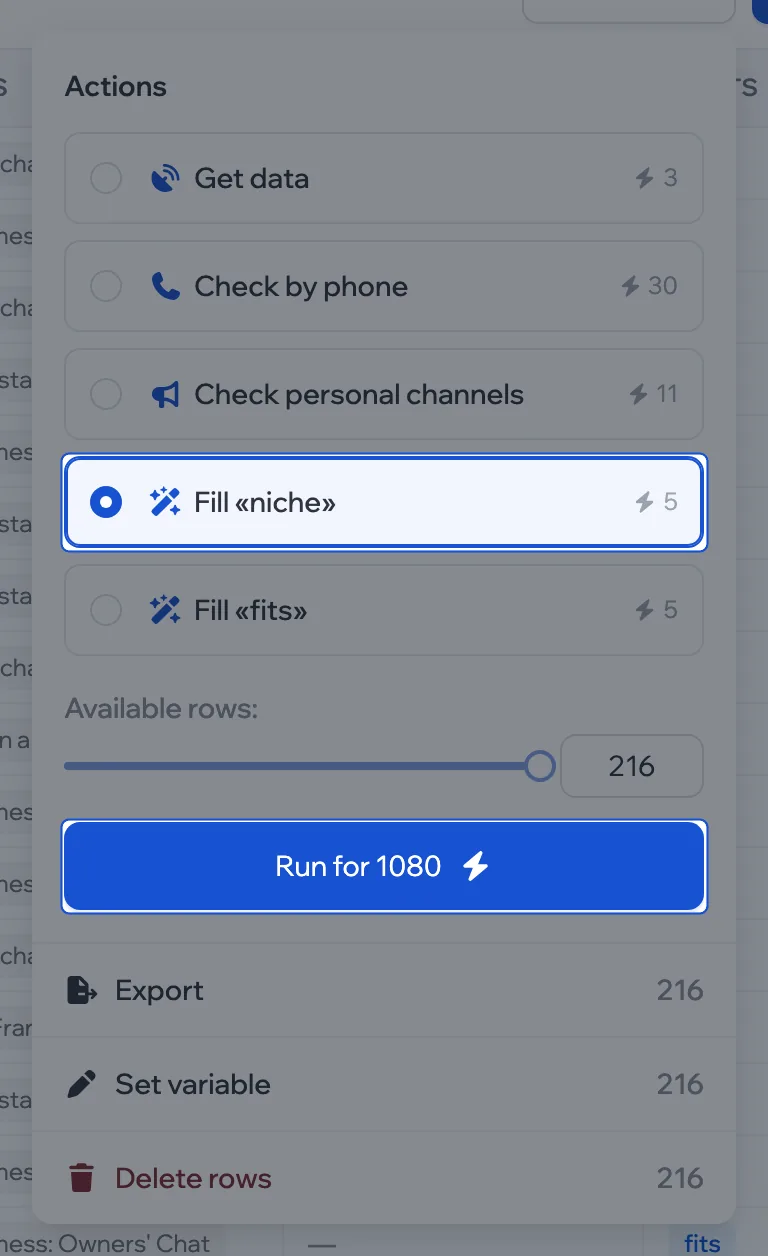
- Actions › Fill «name» › Run for. For a single cell, click it and then Fill via AI.
Insert contact data
A slug in square brackets is replaced with the data of the person the AI is filling the variable for.
| Slug | What gets inserted |
|---|---|
| Profile — after “Get data” | |
[user.name] | Name |
[user.username] | Username |
[user.about] | The “About” text from the profile |
[user.phone] | Phone number |
[user.telegram_id] | Telegram ID |
[user.last_seen_at] | When the person was last online — date and time |
[user.premium] [user.verified] [user.scam] [user.fake] [user.restricted] | Profile badges: true or false |
| If the row is a chat or a channel | |
[user.participants_count] | Number of members |
[user.posts_count] | Number of posts |
[user.pinned_msg_id] | The pinned message’s number |
[user.invite_slug] | The invite link code |
| Personal channel — after the personal channels check | |
[user.channel.title] | Channel title |
[user.channel.about] | Channel description |
[user.channel.pinned_post] | Text of the pinned post |
[user.channel.recent_posts_list] | Up to 10 latest posts, as a numbered list |
| Messages — after message parsing | |
[user.source.messages_list] | Up to 20 of the person’s messages from parsed chats, with the chat name |
| List variables | |
[variable.name] | The value of another variable in this list, or its default value if the cell is empty. The variable being filled can’t be inserted into itself |
No data means empty. If a person doesn’t have what a slug asks for, an empty string takes its place. So check contacts first. A slug with a typo stays in the text as is, brackets included.
Sender and conversation slugs — [account.*], [message.*] — don’t work in a variable prompt: they exist only in scripts.
If AI didn’t fill it
| In the cell | What to do |
|---|---|
| AI couldn’t determine the value | Check contacts first — there’s too little data |
| Response not recognized as a number / yes/no | Add “answer with a number only” or “answer yes or no” to the prompt |
| AI returned empty response | Rephrase the prompt |
Deleting a variable erases its values for every contact in the list.