Build the scenario
Blocks come from the panel, get connected with arrows and are set up with a click.
Add a block
- Hover over an icon on the panel in the top left — a tooltip shows which block it is.
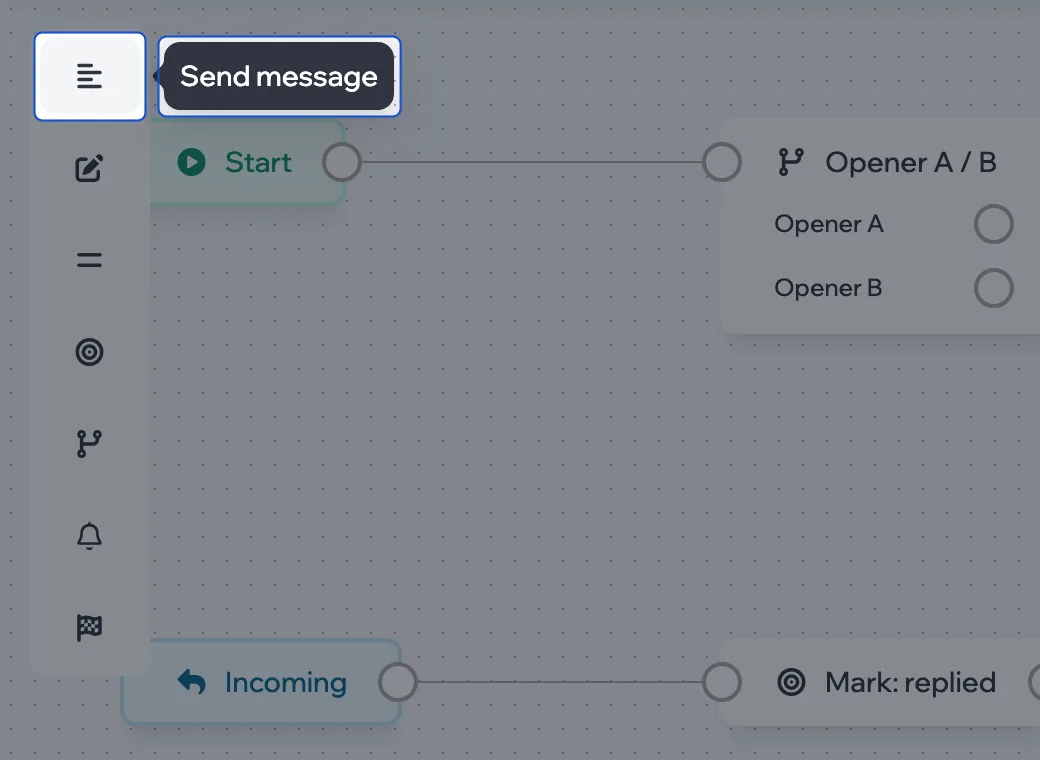
- Drag the icon onto the canvas.
- Click the block to set it up.
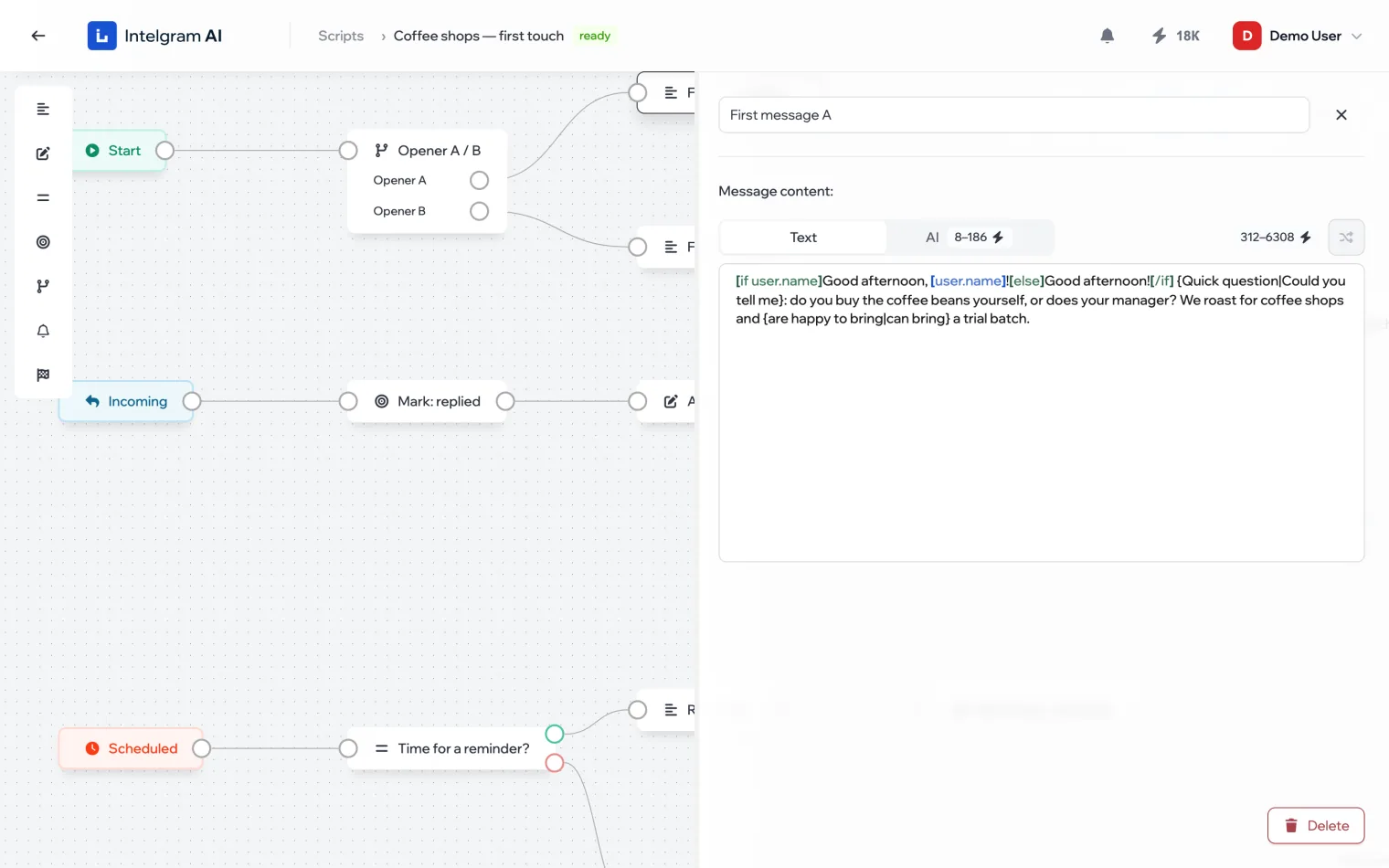
Connect blocks
Drag from the dot on the right of a block to the dot on the left of the next one. A Condition has two outputs — “met” and “not met” — and an A/B test has one per variant. A block can’t be connected to itself.

Copy, delete, undo
| Action | How |
|---|---|
| Copy and paste | ⌘C and ⌘V on the selected blocks |
| Delete | Select a block and press Delete |
| Undo and redo | ⌘Z and ⌘⇧Z, or the arrows on the canvas |
The Start, Incoming and Scheduled triggers can’t be deleted or copied.
Get it to “ready”
A script is ready when the Start branch sends at least one message and the texts have no [if] tags underlined in red. Don’t forget to click Save — the label updates after saving.