Create a script
How to set up a script, save changes, go back to an earlier version, make a copy and delete it.
Create
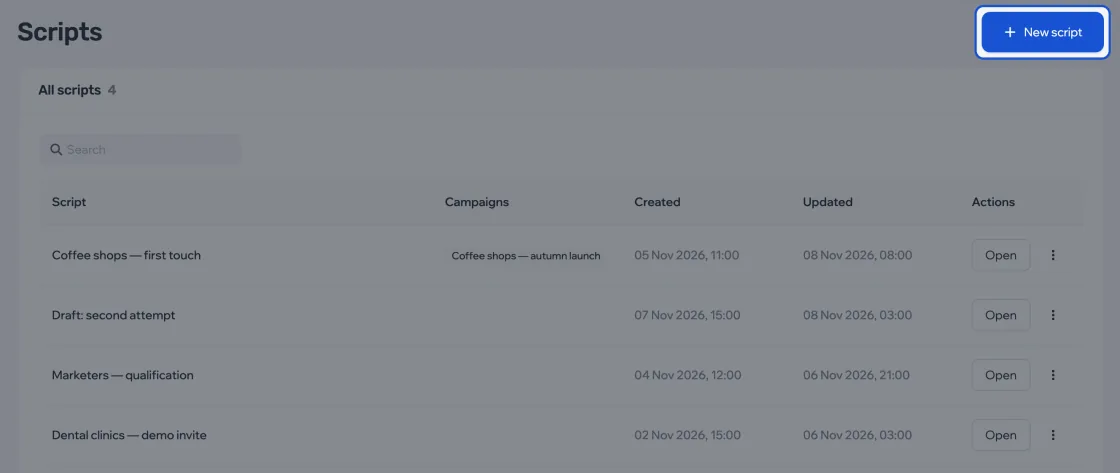
- In Scripts, click New script.
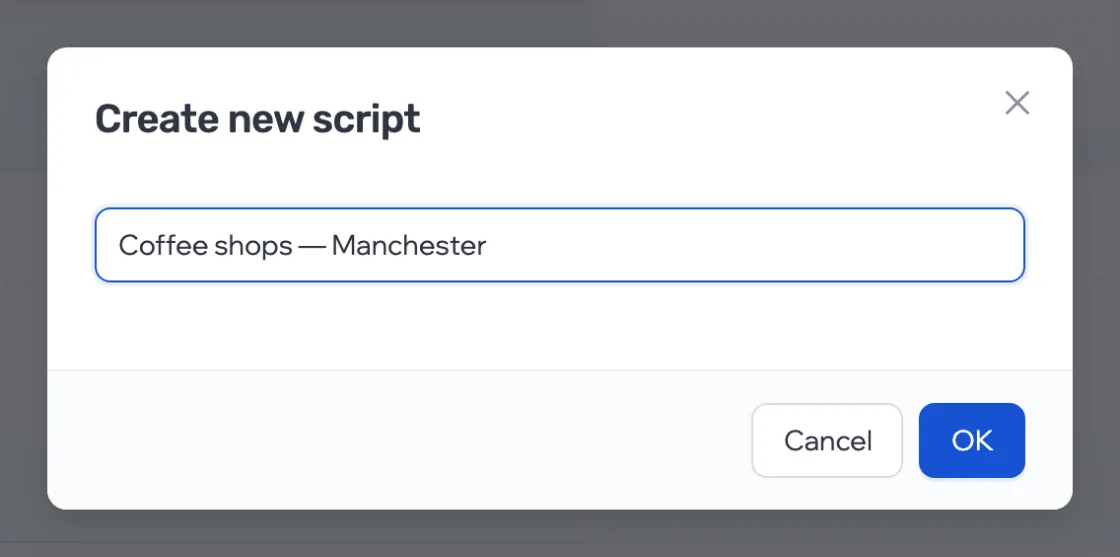
- Enter a name — 3 to 255 characters — and confirm. The editor opens with the three triggers in place.
Save and reset changes
Changes don’t go to the server on their own — click Save. Until you save, changed sits next to the name, and reset brings back the last saved version.

Go back to an earlier version
- Settings › History: every save with its date and note.
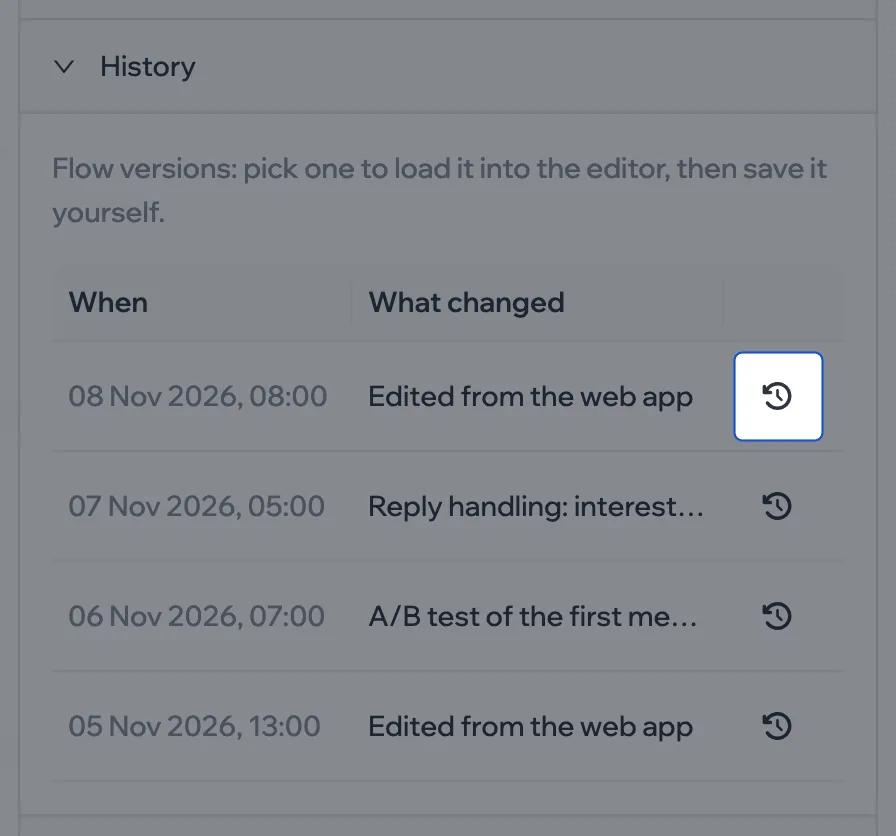
- Click the circular-arrow icon in the version’s row and confirm — the version loads into the editor. Check it and click Save.
Your own changes are signed “Edited from the web app”; the AI assistant’s changes carry its own note.
Rename, clone, delete
Settings: the name is at the top, and Options holds Clone and Delete. The copy opens in the editor right away.
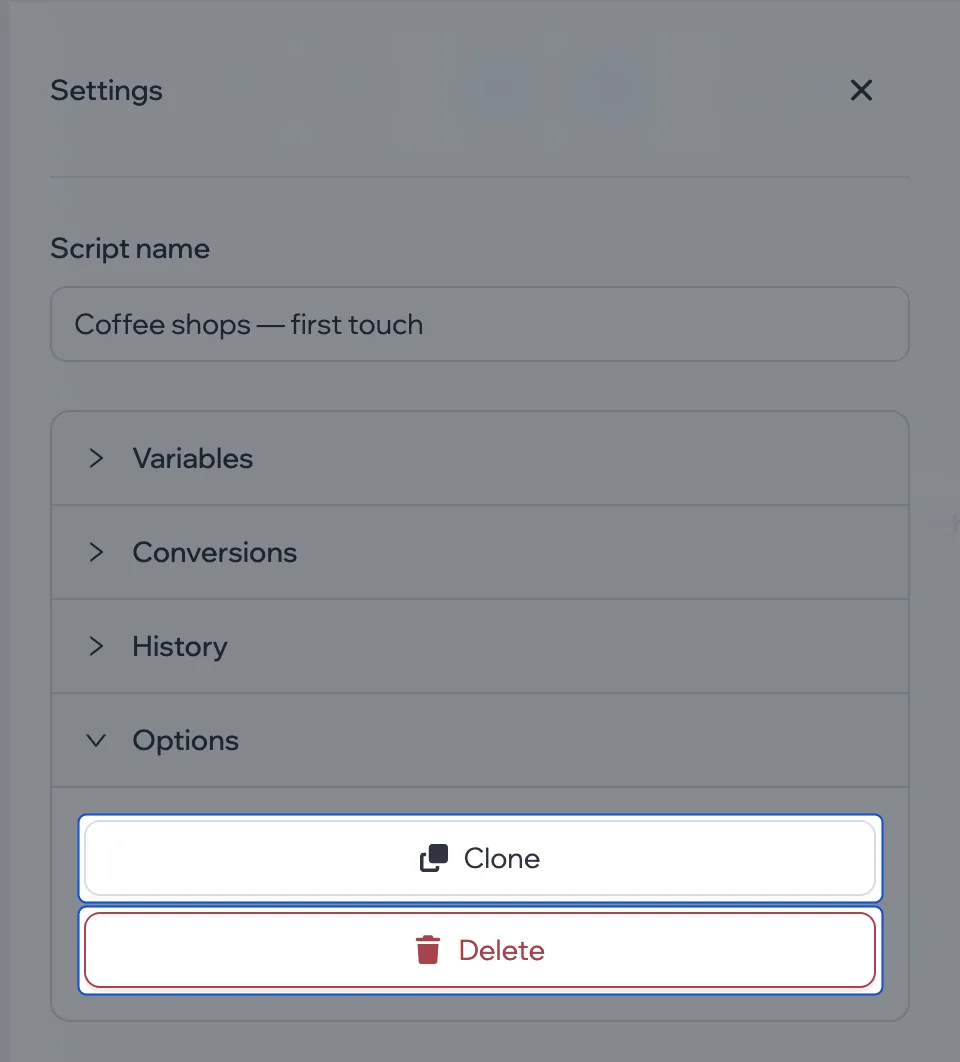
Deleting can’t be undone. A campaign whose script was deleted won’t start until you connect another one.