Variables and conditions
A variable holds what the script has learned about the person. The Condition block splits the dialog by it, and conditional text swaps a piece of a message.
Create a variable
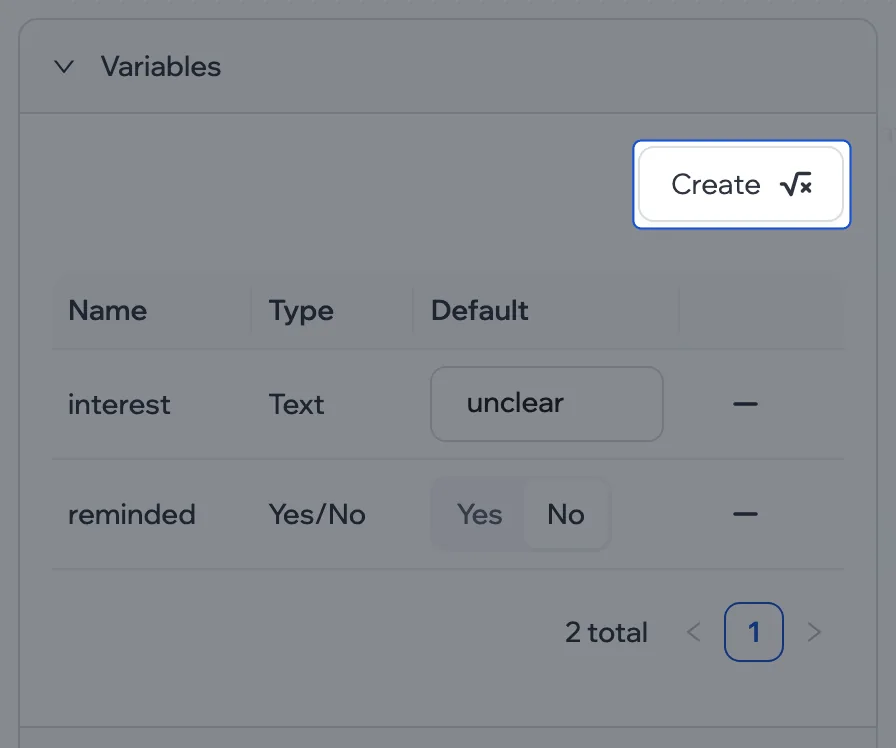
- Settings › Variables › Create.
- Set the name, the type and the default value.
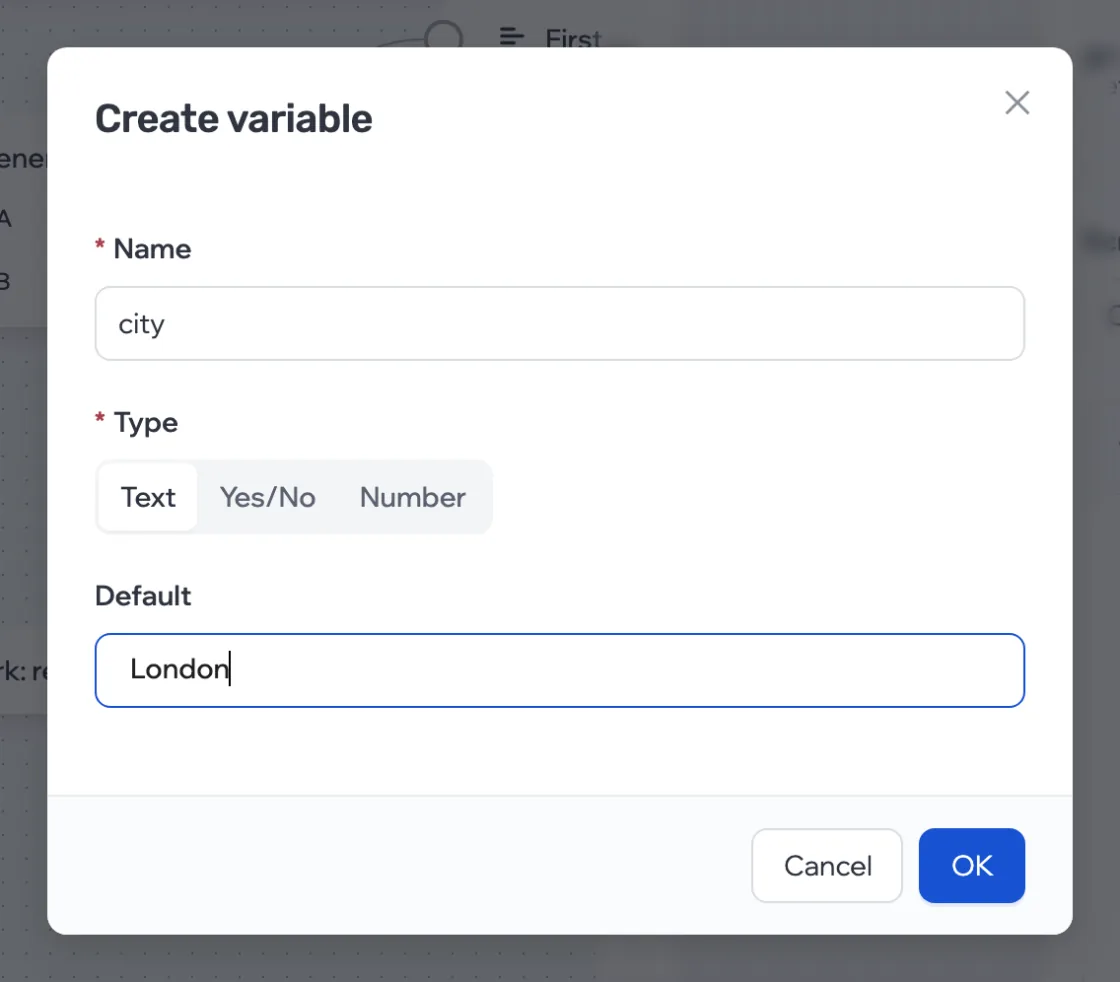
- Text
- Any string: the person’s answer, a city, a name.
- Number
- Compared as a number: greater than, less than.
- Yes/No
- A flag: “reminded”, “agreed”.
The name starts with a letter, followed by letters, digits and _, and must be unique within the script. You can also create a variable on the fly with the Create variable button in the Set variable and Condition blocks.
Save a value
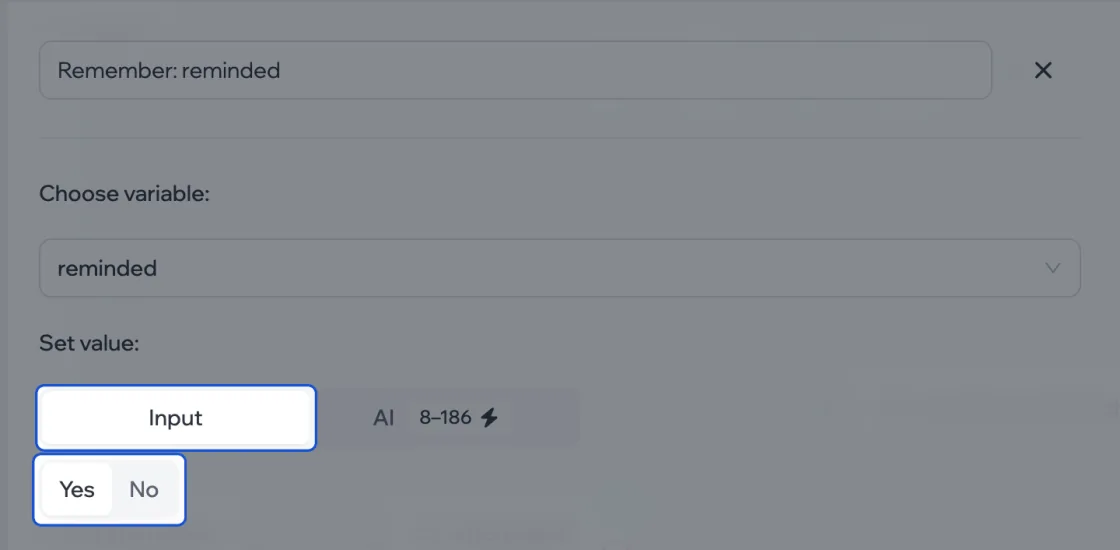
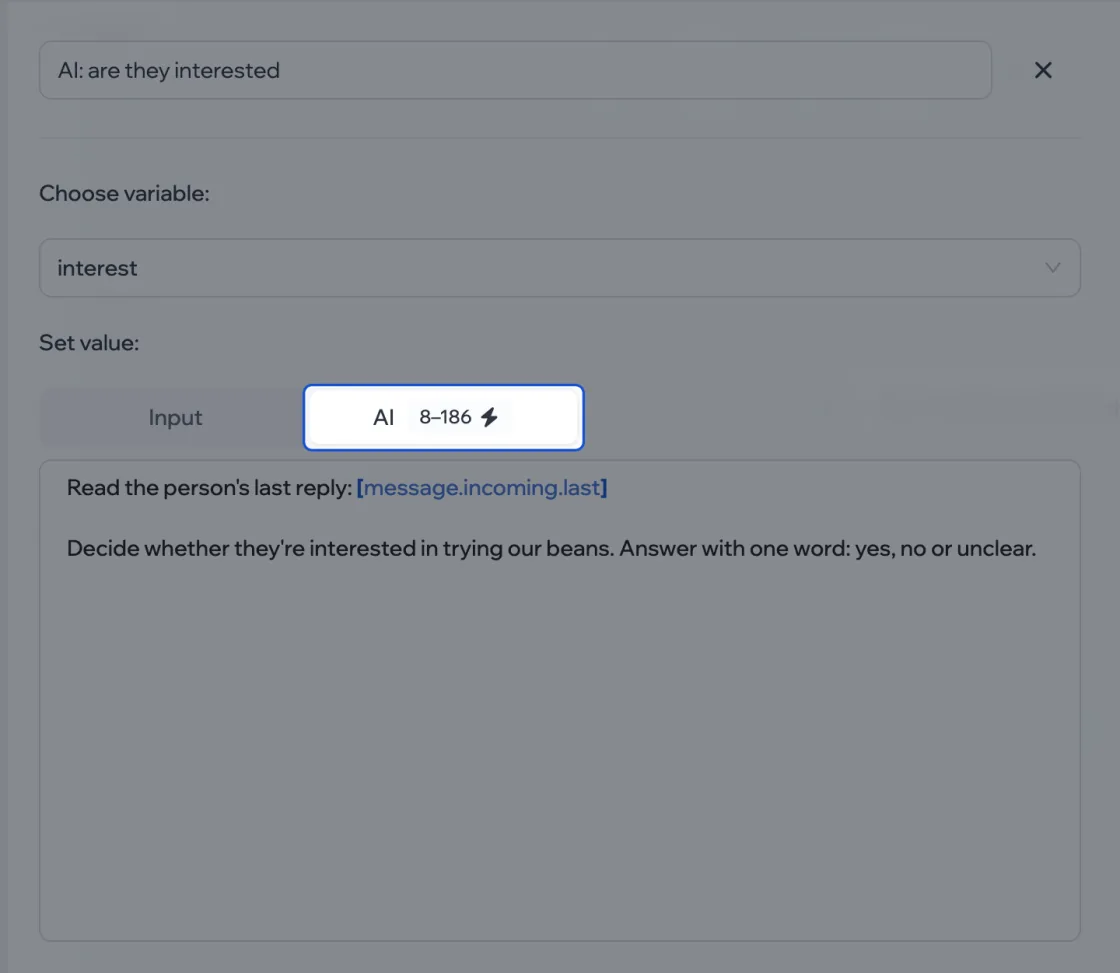
The Set variable block: choose a variable and a method.
- Input
- You set the value. For text it’s a string, and placeholders work in it:
[message.incoming.last]saves the person’s last reply. For a number it’s a number; for Yes/No it’s a switch. - AI Paid
- Describe the task — AI reads and answers with a value of the right type. If it can’t answer in that type, the variable stays empty.
Insert a variable into text
A variable goes into a message, a notification or an AI task as [variable.name]. Type [variable. and the editor shows which ones exist.
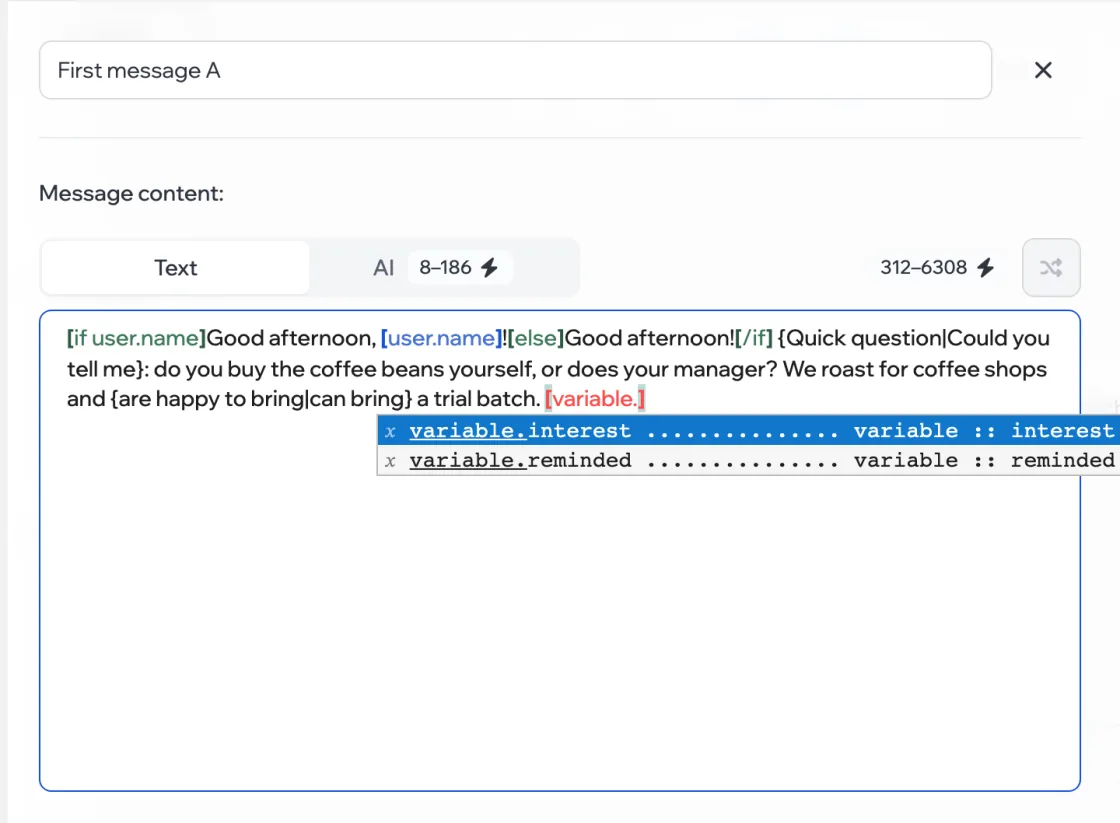
Audience list variables are inserted the same way — no need to create them in the script. If a name exists in both places, the first non-empty value in this order is used:
- the value saved in this dialog by a Set variable block;
- the person’s value in the audience list;
- the default value in the script;
- the default value in the audience list.
If nothing is found, an empty string goes in. If there’s no variable with that name anywhere, [variable.name] stays in the text, brackets and all.
Placeholders inside a variable
A variable’s value can itself contain placeholders — they’re filled in when the message is sent. For example, if the audience list has the intro My name is [account.name], each person sees the name of the account that’s writing to them.
Text that came from Telegram — the person’s messages, profile and channel descriptions — isn’t expanded this way: brackets are stripped from it. A variable that refers back to itself through a chain isn’t expanded any further.
Split on a condition
- Add a Condition block and click Add rule.
- Choose what to compare: a script variable or dialog data — the person’s name, the last reply, how many hours of silence.
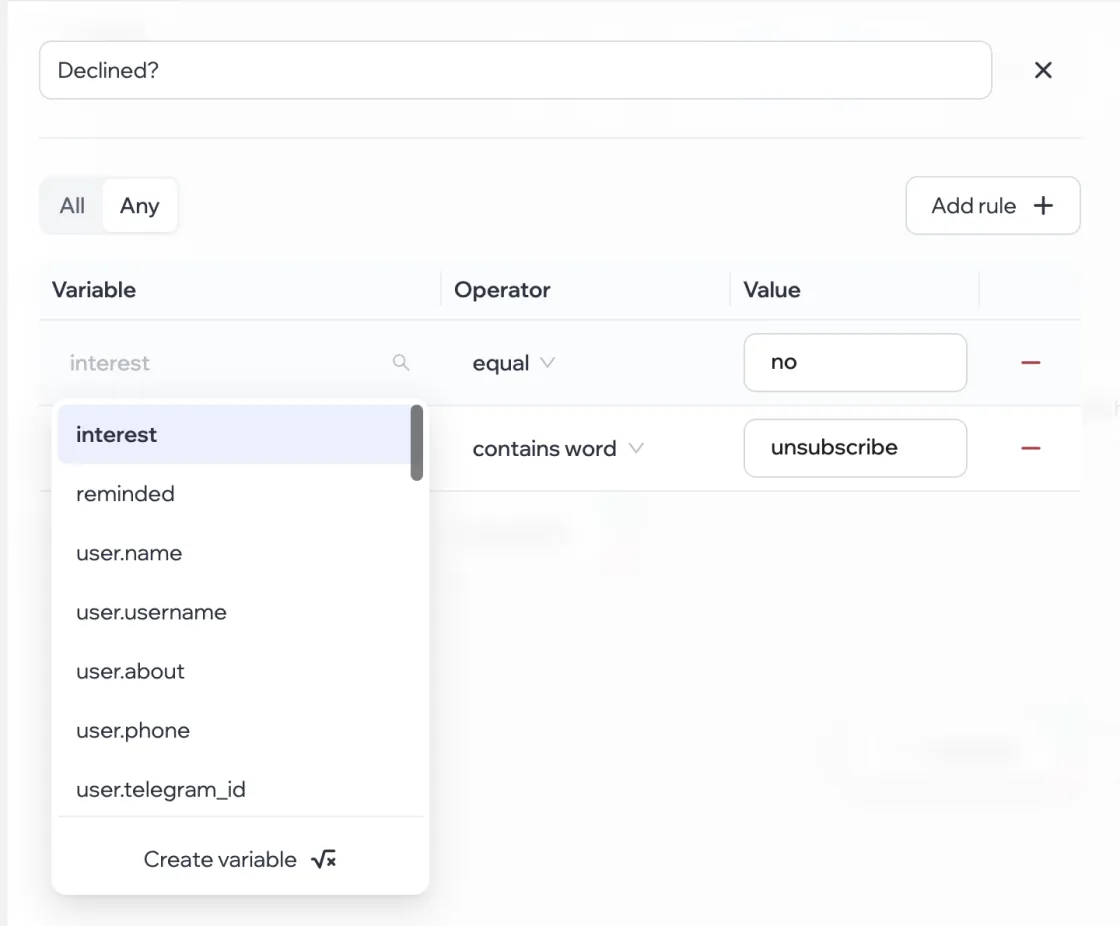
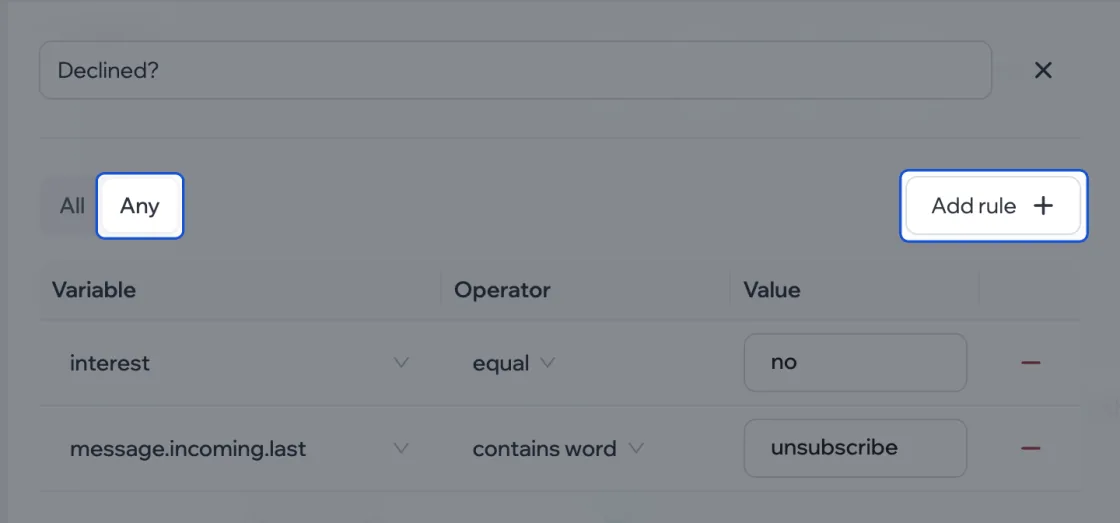
- Choose the comparison and the value. You can add several rules: All means every rule must match, Any means one is enough.
- Connect the outputs: the upper green one is used when the condition is met, the lower red one when it isn’t.
The comparisons for text, numbers and Yes/No and the dialog data you can use are in the reference.
Show a piece of text on a condition
To avoid adding blocks for a single phrase, write the condition right in the text:
[if user.name]Good afternoon, [user.name]![else]Good afternoon![/if]
| Syntax | Meaning |
|---|---|
[if user.name]…[/if] | Show if filled in |
[if not user.name]…[/if] | Show if not filled in |
[if variable.city = London]…[else]…[/if] | Show one thing or the other |
[if variable.locations > 1 and variable.city = London]…[/if] | Both conditions must hold; or means one is enough |
Both script variables and audience list variables work in text. Type [if and the editor suggests variables and comparisons and adds the closing [/if] for you. You can’t nest [if] tags or mix and and or in one tag.
The editor underlines tag errors in red — a missing pair, an extra [else], a comparison it can’t read.
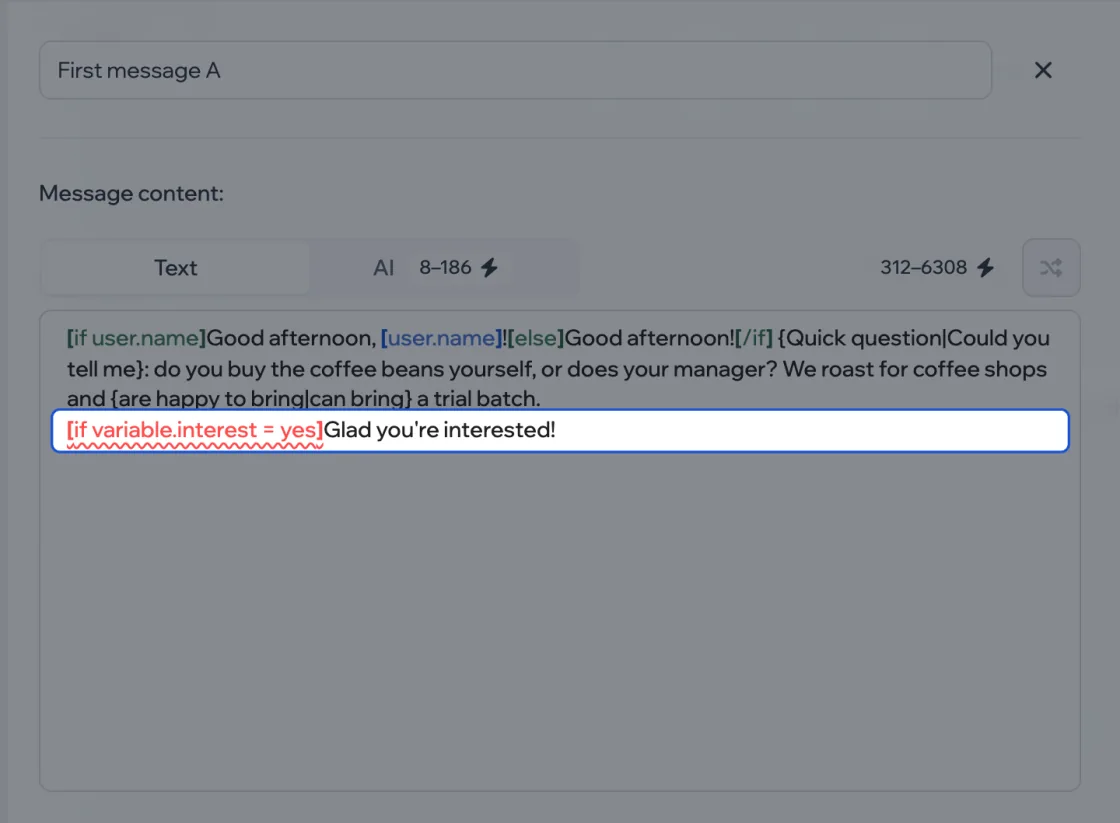
While there’s an error, the script won’t be ready to launch: the text would reach the person as is, brackets and all.