Write a message
The Send message block: a ready-made text with the person’s data, or a text written by AI.
Write the text
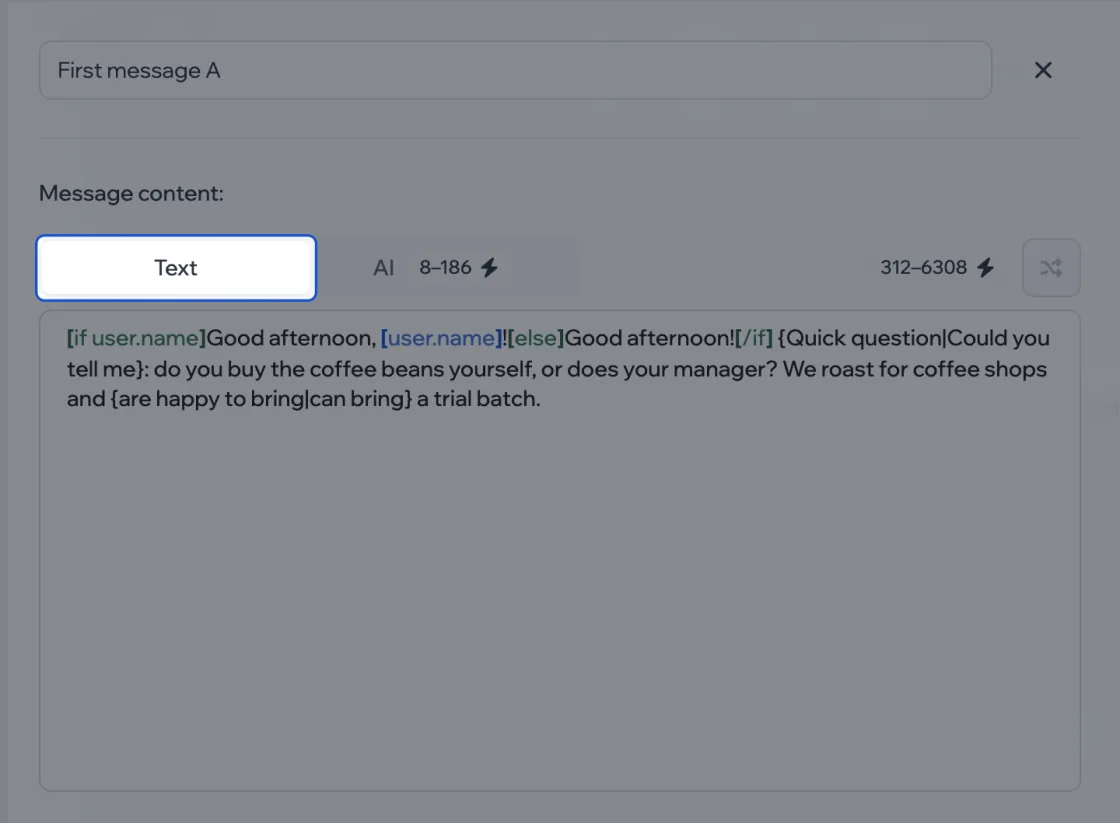
In the block, choose Text and write the message.
Insert the person’s data
Type [ and the editor suggests what you can insert: name, username, variables. For example, [user.name] becomes the person’s name.
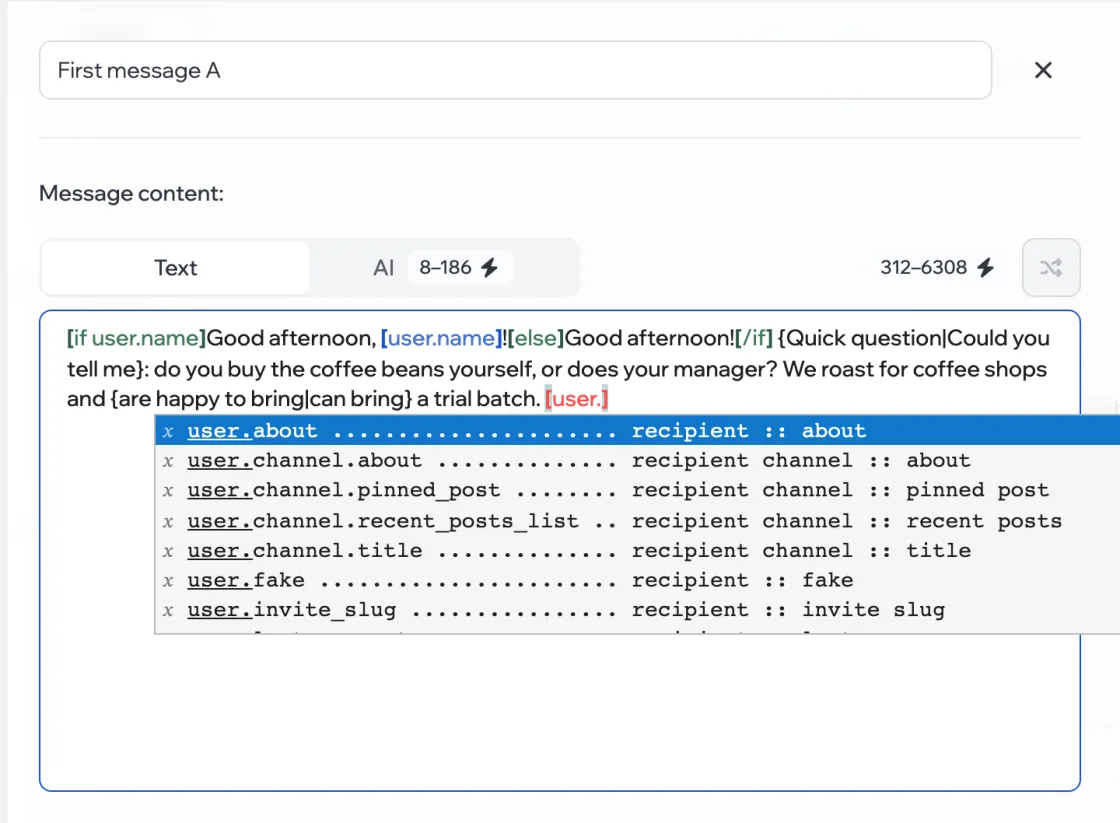
All placeholders are in the reference.
Show a piece of text on a condition
Use the name only if there is one: [if user.name]Good afternoon, [user.name]![else]Good afternoon![/if]. How to write such conditions is covered in Variables and conditions.
Vary the text
Put variants in curly braces separated by |: each person gets one of them at random.
{Quick question|Could you tell me}: where do you get your beans now?
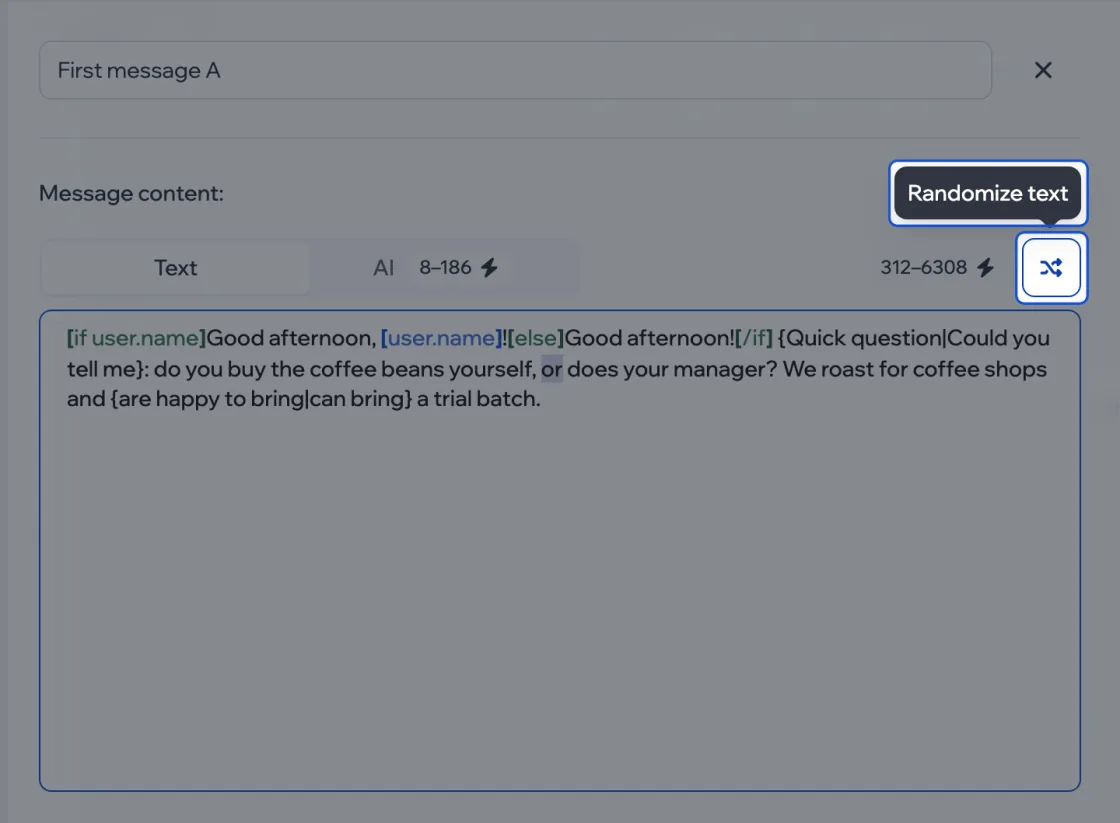
You don’t have to write variants by hand: select a piece of text and click the randomize button above the field on the right. AI rewrites the selection into variants. Paid
Let AI write it Paid
Choose AI and describe the task: what to say and how. AI sees the whole conversation with the person and writes a reply that continues it. Placeholders work in the task too.
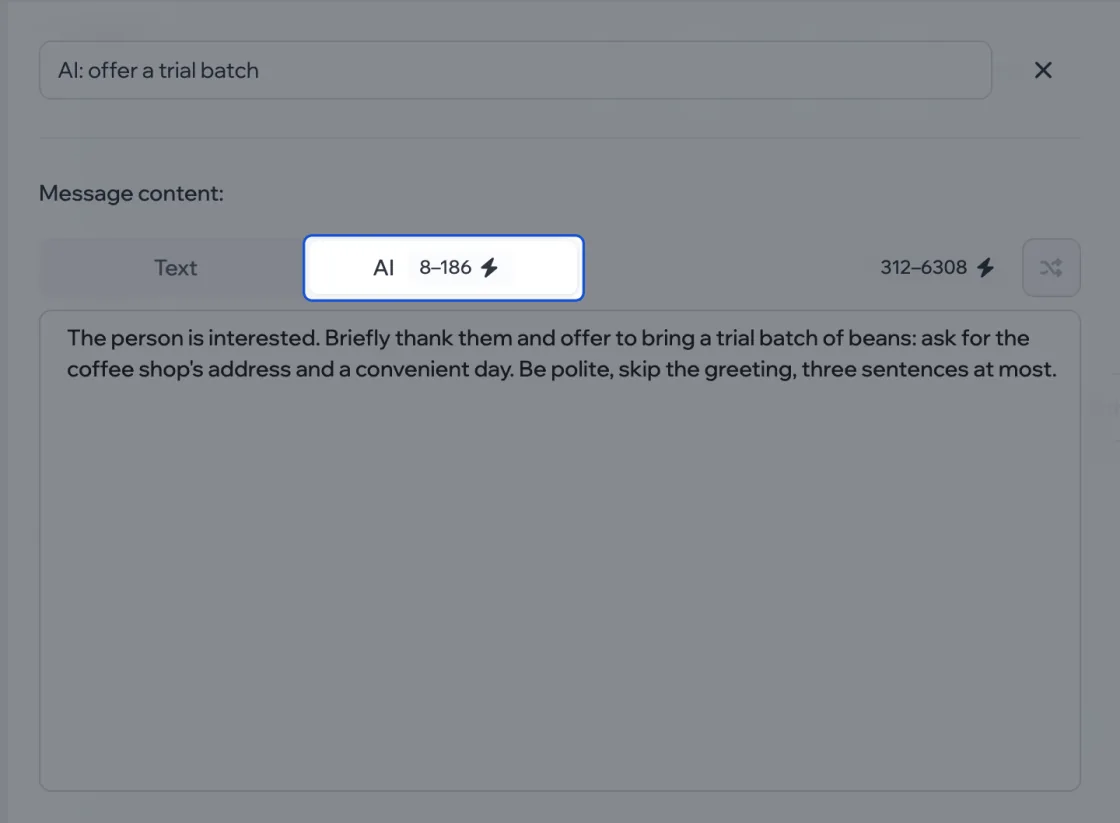
The label next to AI shows what one request costs; you’re charged what it actually spends.