Handle conversations
The Messages tab holds all of the campaign’s dialogs. You can read them, mark conversions, leave notes and, when needed, reply yourself.
Find a dialog
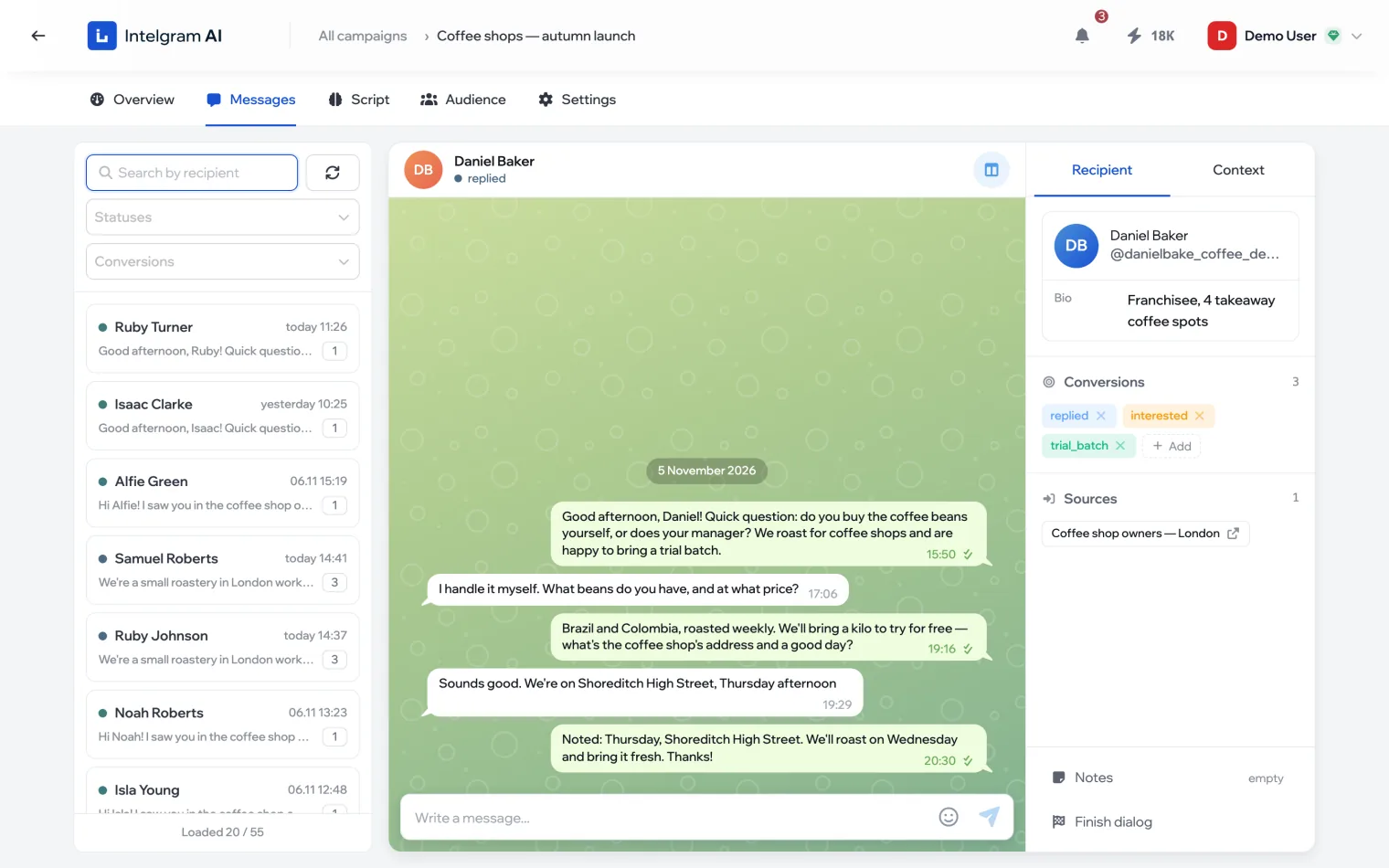
Dialogs are on the left, newest first: name, time, the start of the last message and how many messages are in the conversation. On top are a recipient search and filters by Statuses and Conversions: for example, only those who replied or only those who reached a trial batch. The button with arrows refreshes the list.
Open a dialog
The conversation is in the middle, the panel on the right.
- Recipient
- The person’s profile, their conversions and the source chats they came onto the list from.
- Context
- Which account the conversation is coming from and the dialog’s variable values.
Reply yourself
- Type a message in the field under the conversation and send it.
- Confirm switching to manual mode.
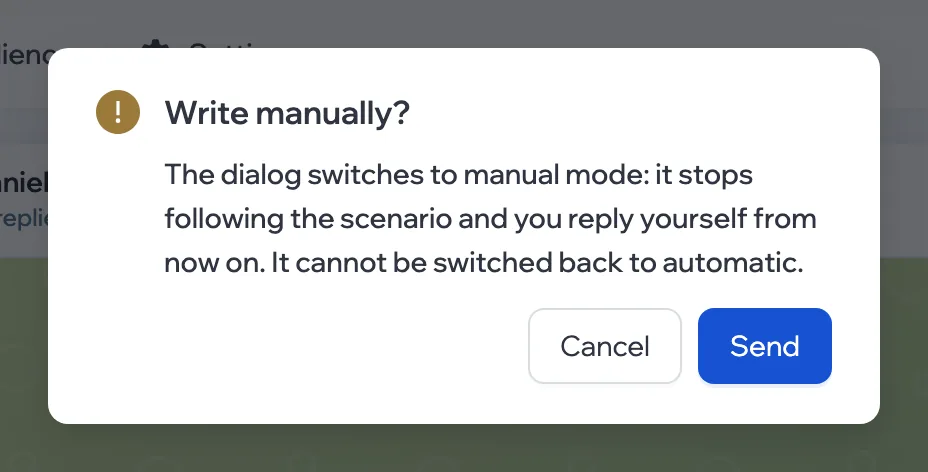
Manual messages are free, but they go from the same account and count toward its daily limits. Under each message you can see where it is: being delivered, sent, read or not delivered.
You can’t write by hand if the first message hasn’t gone out yet, sending failed, the dialog is finished or the person blocked the sender — the field tells you why.
Mark a conversion
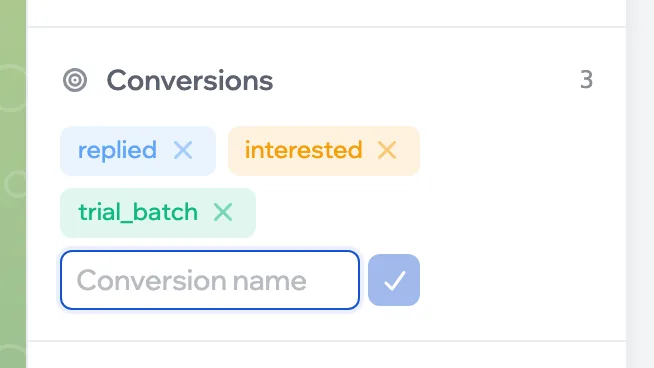
The script marks conversions itself, but you can also set and remove them by hand: in the panel’s Conversions block, click Add, type the stage name and confirm with the tick. The cross next to a conversion removes it.
Leave a note
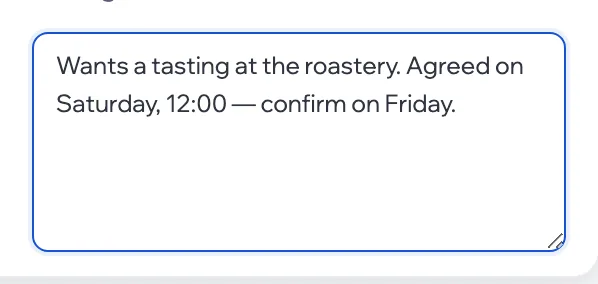
The Notes block at the bottom of the panel is your record for the dialog: what was agreed, what to do next. Everyone with access to the campaign sees the note.
Finish a dialog
Finish dialog at the bottom of the panel closes the conversation: the script stops replying, the person’s replies are no longer processed and you can’t write by hand. Resume dialog brings it back.