Build a campaign
Create a campaign and connect a script, an audience and accounts to it. The schedule sets when and how many people the campaign takes on.
Create
- In Campaigns, click New campaign.
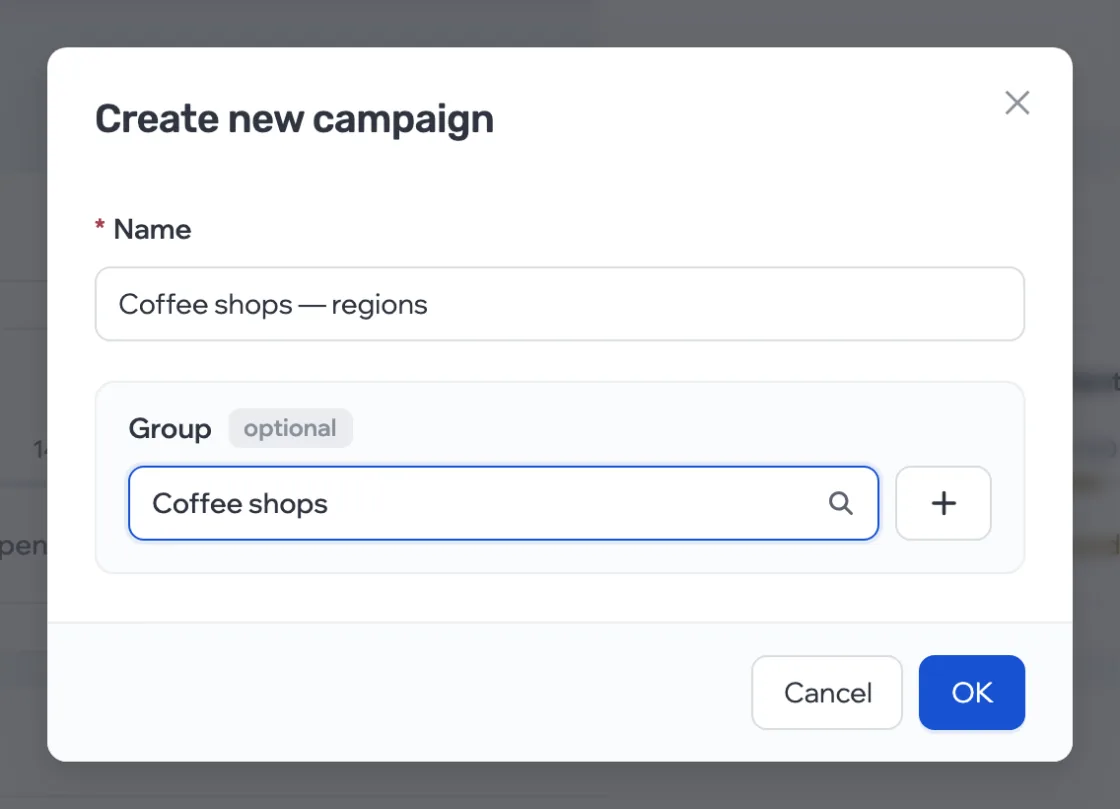
- Enter a name — 3 to 255 characters. You can pick a group right away, create a new one with the + button, or skip it. Click OK.
Connect a script
In the campaign’s Script tab, pick a ready script or create a new empty one — it’s attached to the campaign right away. A connected script can be opened in the editor (Open), replaced with another one, or detached.
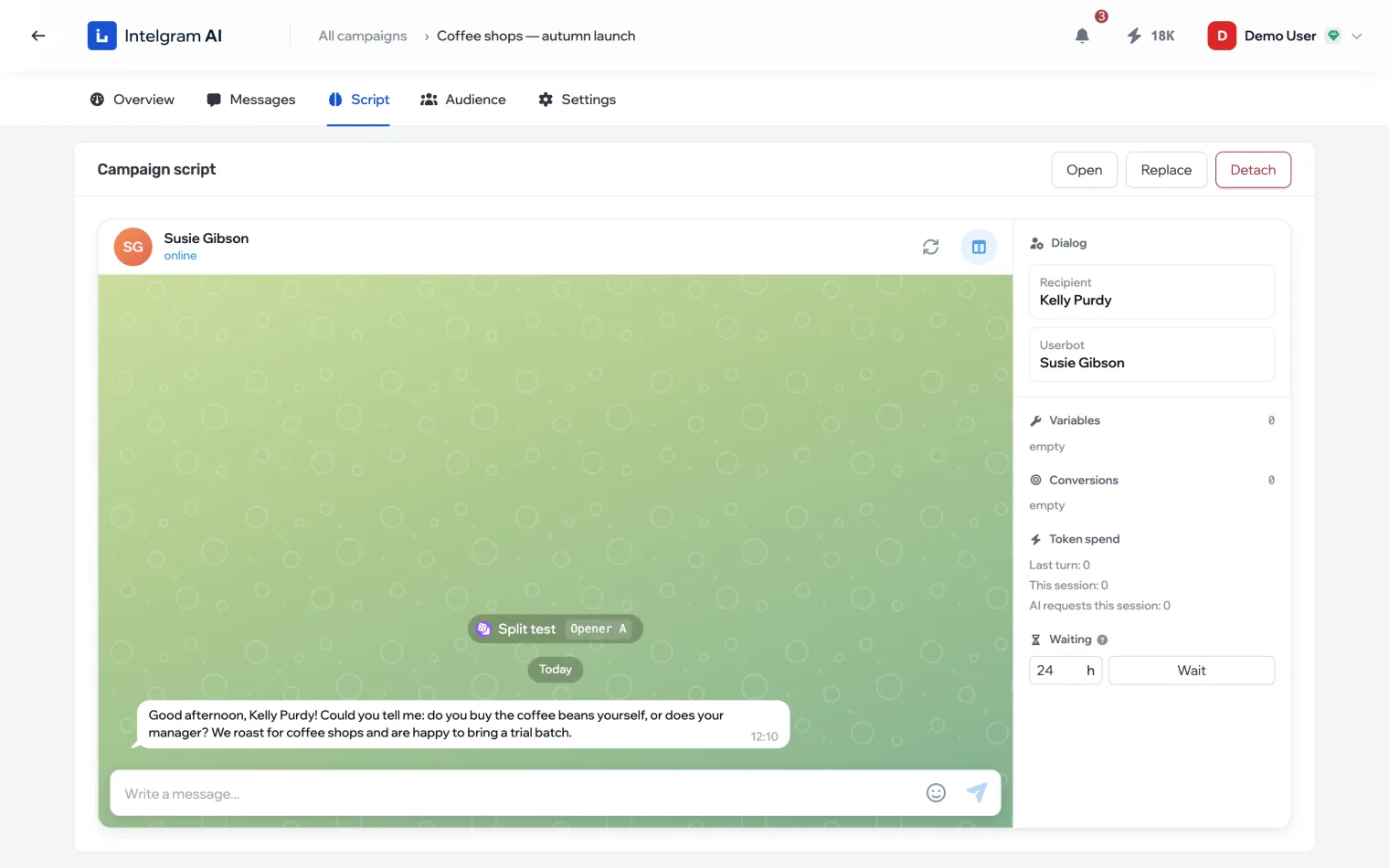
There’s also a test chat here, so you can check the dialog without leaving the campaign. How it works is in Test a script.
Connect an audience
- In the Audience tab, click Replace (or Attach if there’s no list yet) and choose a list. A campaign has one list: a new one replaces the old.
- In the Who to message block, narrow people down with conditions — the same way as filters in a list. The count of matching people is shown below. Click Save.
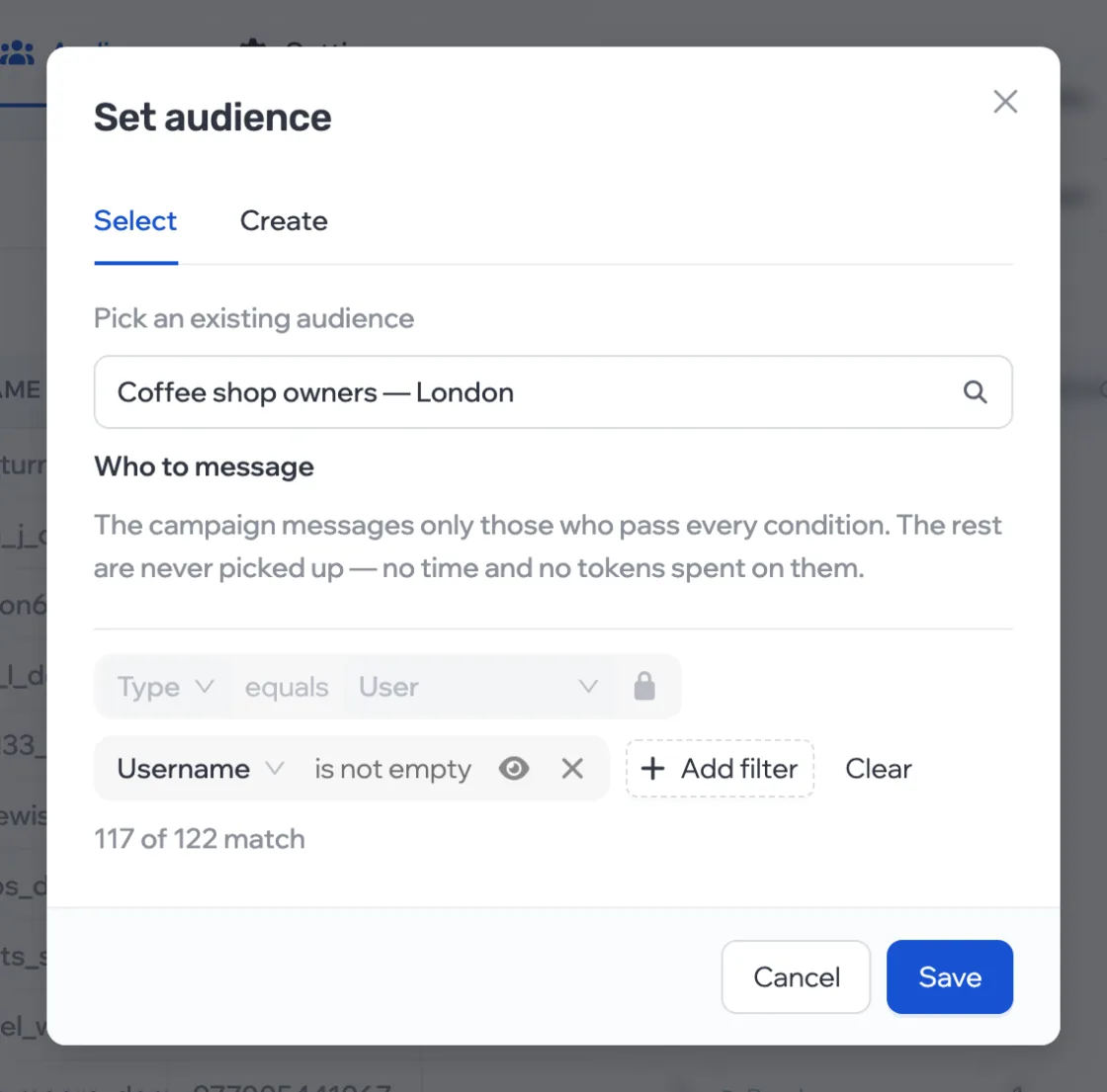
Anyone who doesn’t pass the conditions isn’t picked up — no time or tokens are spent on them. The first condition is always there: only people get messages; chats, channels and bots are filtered out. Unchecked rows pass — who they are becomes clear on the first send.
Assign accounts
- In the campaign’s Settings, in the Accounts block, click Manage.
- Available accounts are on the left, accounts attached to the campaign on the right. Use the arrow next to an account to move it into the campaign or back; you can tick several and move them at once. Both lists can be filtered by group.
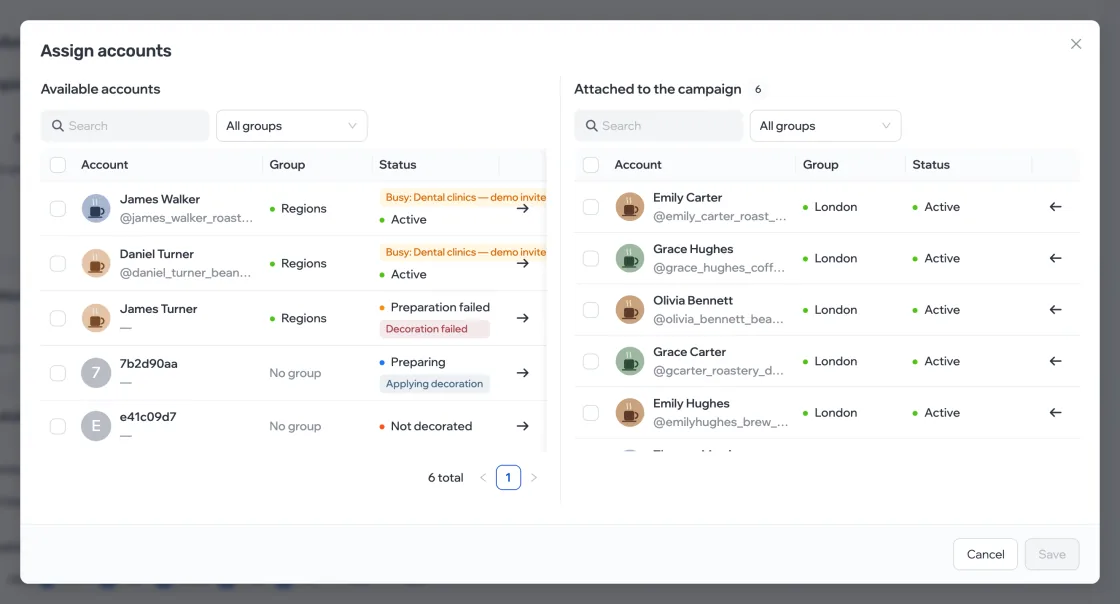
- Click Save — the button shows how many changes there are.
An account works in one campaign only. A busy one is marked “Busy: campaign name” — you can move it here if that campaign isn’t running. If it is, stop it first. Accounts banned by Telegram can’t be assigned.
Set the schedule
In the campaign’s Settings, in the Schedule block:
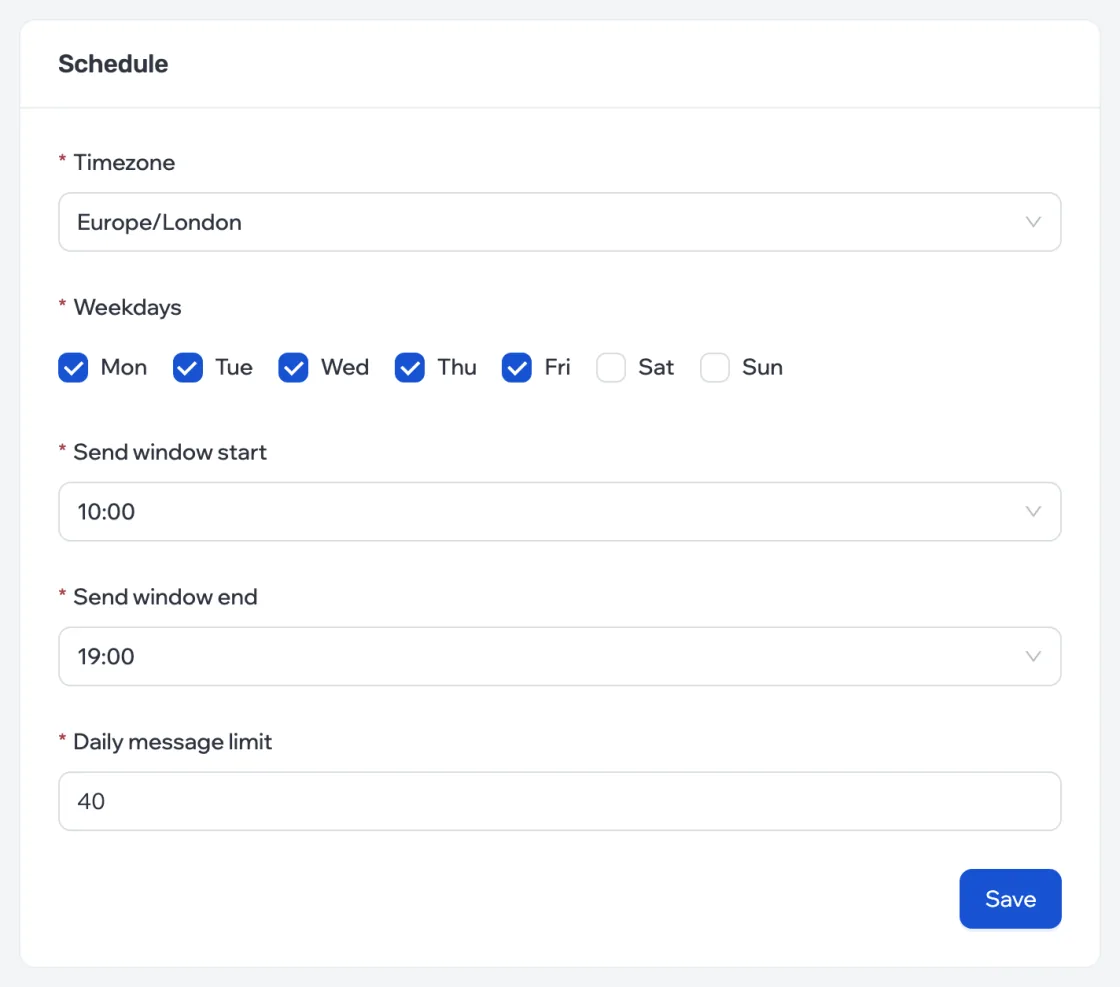
- Timezone
- The window and the day for the limit are counted in it.
- Weekdays
- On which days the campaign takes on new people and sends follow-ups.
- Send window
- From which hour to which. The window can cross midnight, for example from 22:00 to 02:00.
- Daily message limit
- How many new dialogs the campaign starts per day. A change takes effect immediately.
The schedule applies to first messages and follow-ups. The campaign replies to people whenever their replies come in.